What a stream needs
A complete overlay set does three jobs, and the Livestream Pack has a template for each:
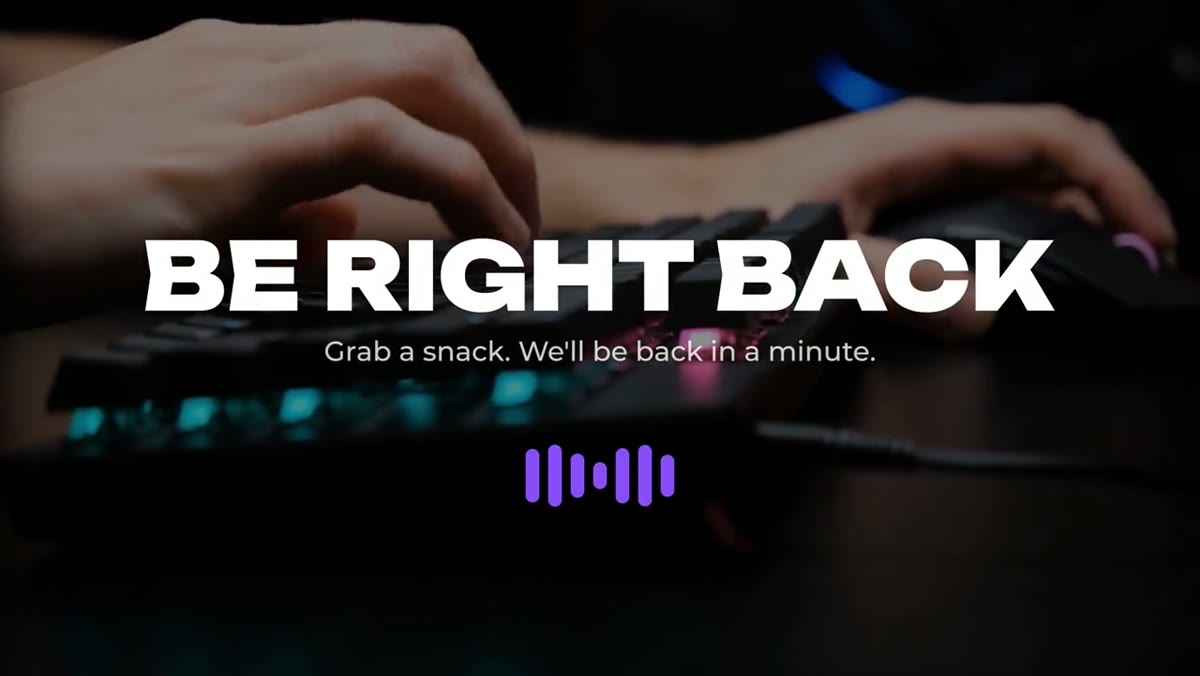
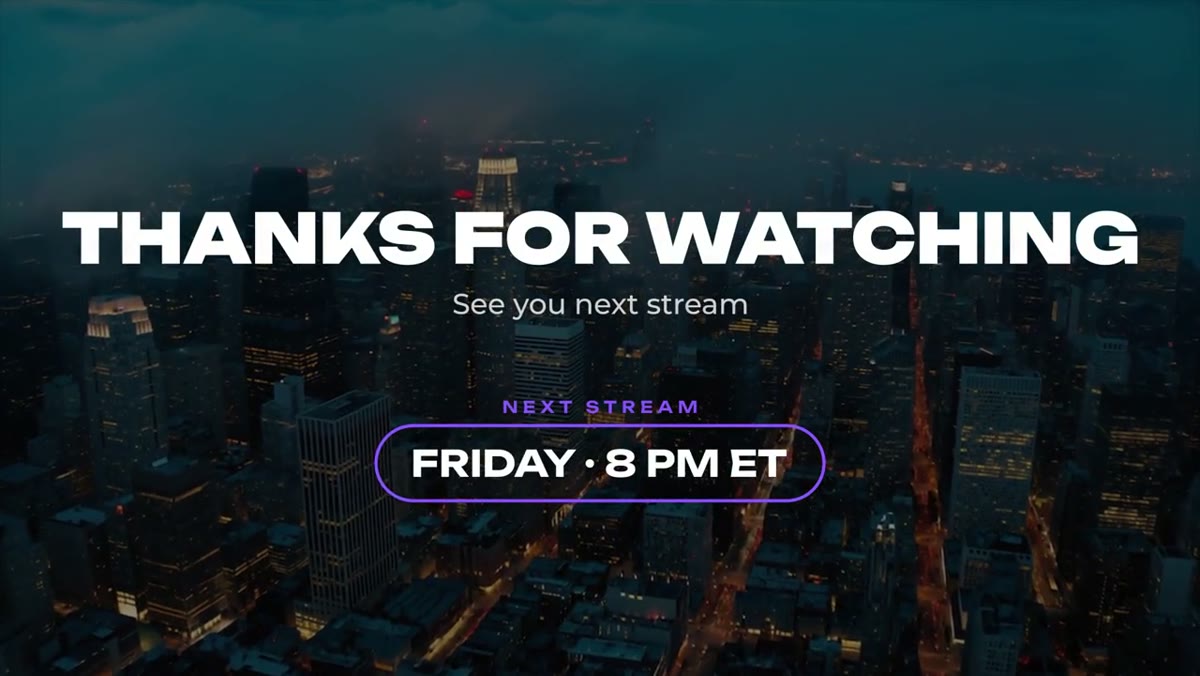
- Scenes fill the screen between segments: Starting Soon with a real-time countdown, Be Right Back with a looping equalizer, and Stream Ending with your next stream time.
- Overlays sit on top of gameplay or camera: Socials Bar, Webcam Frame, Live Ticker, Goal Bar and the free Now Playing pill.
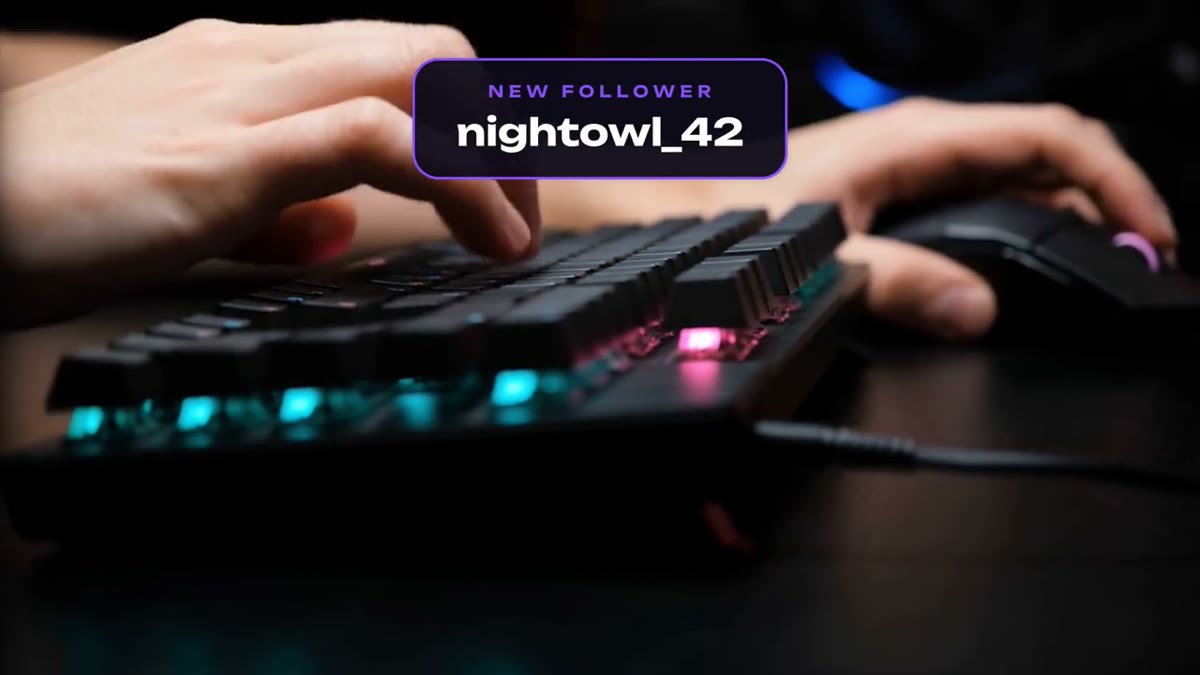
- Alerts pop in for moments: Follower Alert and Donation Alert.
They share a neon violet palette and two free fonts, Unbounded and Montserrat. Every color is editable, so matching your channel branding takes minutes. The pack is $39 for all ten.
What's ready for OBS
Some of the pack is ready to load and some is meant to be edited first:
- Ready for OBS: drop in the transparent WebM. Be Right Back, Stream Ending, Follower Alert and Donation Alert come as 1920x1080 transparent WebMs in the OBS Media Source folder of the download, with OBS setup steps in READ_ME_FIRST.txt. Add the scenes as Media Sources and upload the alerts to your alert service. Nothing to edit or export.
- Live in OBS: Starting Soon runs as a Browser Source from your library.
- Edit, then export: Socials Bar, Webcam Frame, Live Ticker, Goal Bar and Now Playing carry your own handles, sizes and numbers, so set them up in Premiere Pro, export with transparency (ProRes 4444, or WebM with alpha for OBS) and add them as Media Sources.
New to OBS? Quick walkthrough: the be right back screen guide shows adding a WebM as a Media Source step by step. Export edited overlays at your canvas size rather than 4K, so OBS has more headroom for your game and encoder.
Loops, timing and the countdown
- Be Right Back comes as a transparent WebM that loops seamlessly every 17 seconds, so set it to loop and step away.
- Socials Bar cycles three platforms and handles in one pill, which is tidier than three logos crowding a corner.
- Live Ticker scrolls a message across a full-width bar with a pulsing LIVE badge. Keep it to a sentence or two so people can read it in one pass, and bring it in for announcements rather than leaving it up all stream.
- Starting Soon runs live in OBS as a transparent Browser Source. Copy the private URL from your library, add it at 1920x1080, then set the minutes or target time in the URL. The Starting Soon OBS setup has the full steps.
Alerts and live data
Most alert services play a short video and draw the viewer's name and amount on top in real time. The ready-made Follower Alert and Donation Alert WebMs are built for exactly that: the card carries only its label, so upload them as the alert video and let your service add the name. The Twitch alerts guide has the StreamElements and Streamlabs steps. For highlight videos, VODs and recaps, you can also type a viewer's name straight into the .mogrt.
The Goal Bar is different. It's a Premiere Pro template that counts up to the numbers you set, and those numbers are baked into the render, so it isn't in the download as a ready-made OBS file. Update the numbers and re-export between streams, or use it in recaps.
Placement on stream
- Keep persistent overlays small and in the corners, clear of the game UI you need: minimap, health, ammo.
- Size the Webcam Frame to your camera with its frame width and height controls, then line up the camera source inside it in OBS.
- Keep important text 5% in from the edges. Twitch and YouTube both show player controls over the bottom of the video when viewers hover.
- Use the same colors across scenes, overlays and alerts. A viewer should be able to tell it's your stream from any single frame.
Want the creator graphics for your YouTube uploads too? LaunchFrame Unlimited includes every pack in the store.