How YouTube end screens work
An end screen covers the last 5 to 20 seconds of a video, where YouTube lets you place up to four clickable elements: videos, playlists, a subscribe button, a channel, or a link if your channel is eligible. You add those elements in YouTube Studio after upload. What goes in the video itself is the backdrop: a layout that leaves room for the elements and tells people what to do.
The video has to be at least 25 seconds long, and at least one element must be a video or playlist.
The End Screen template
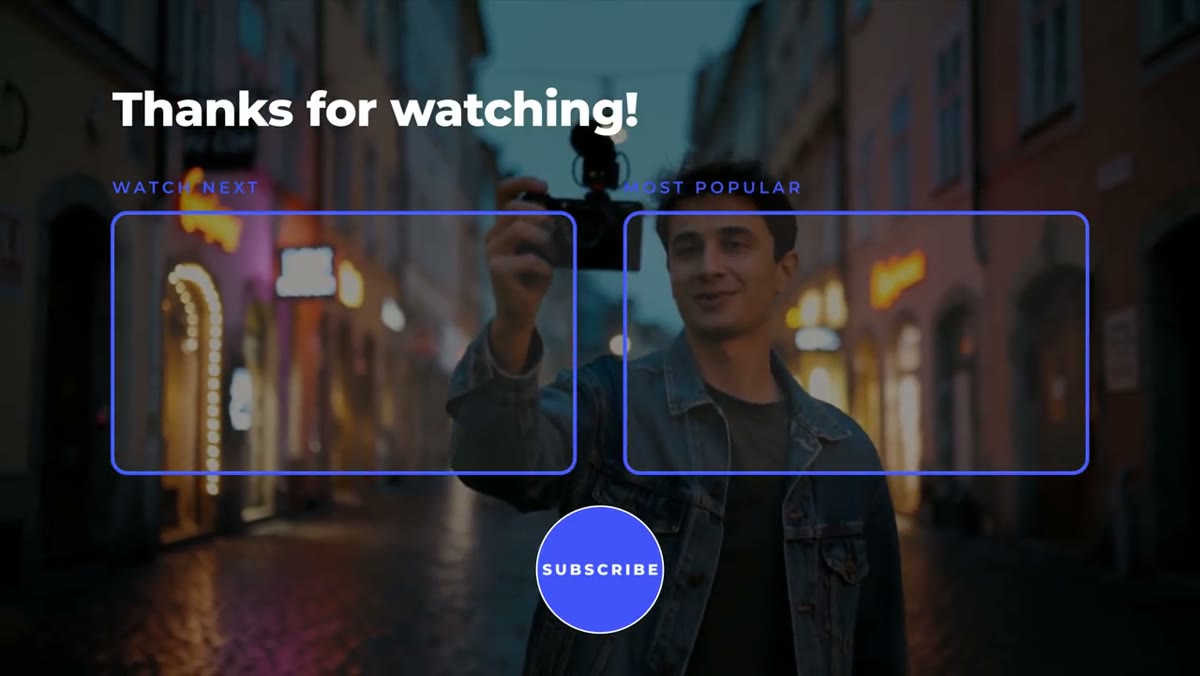
The End Screen template lays out a title, two 16:9 video slots and a round subscribe slot, positioned for YouTube's end screen elements so your cards line up. It runs 20 seconds and trims to any length, with the intro and outro animations kept at full speed.
- Edit the title (Thanks for watching! by default) and the two slot labels (WATCH NEXT and MOST POPULAR).
- Set the colors, or switch the background off to run the layout over your last shot.
- Trim the clip to the length you'll set in YouTube Studio, between 5 and 20 seconds, and place it at the very end of the timeline.
- After upload, open the end screen editor in YouTube Studio, add two videos and a subscribe element, and drag each one onto its slot.
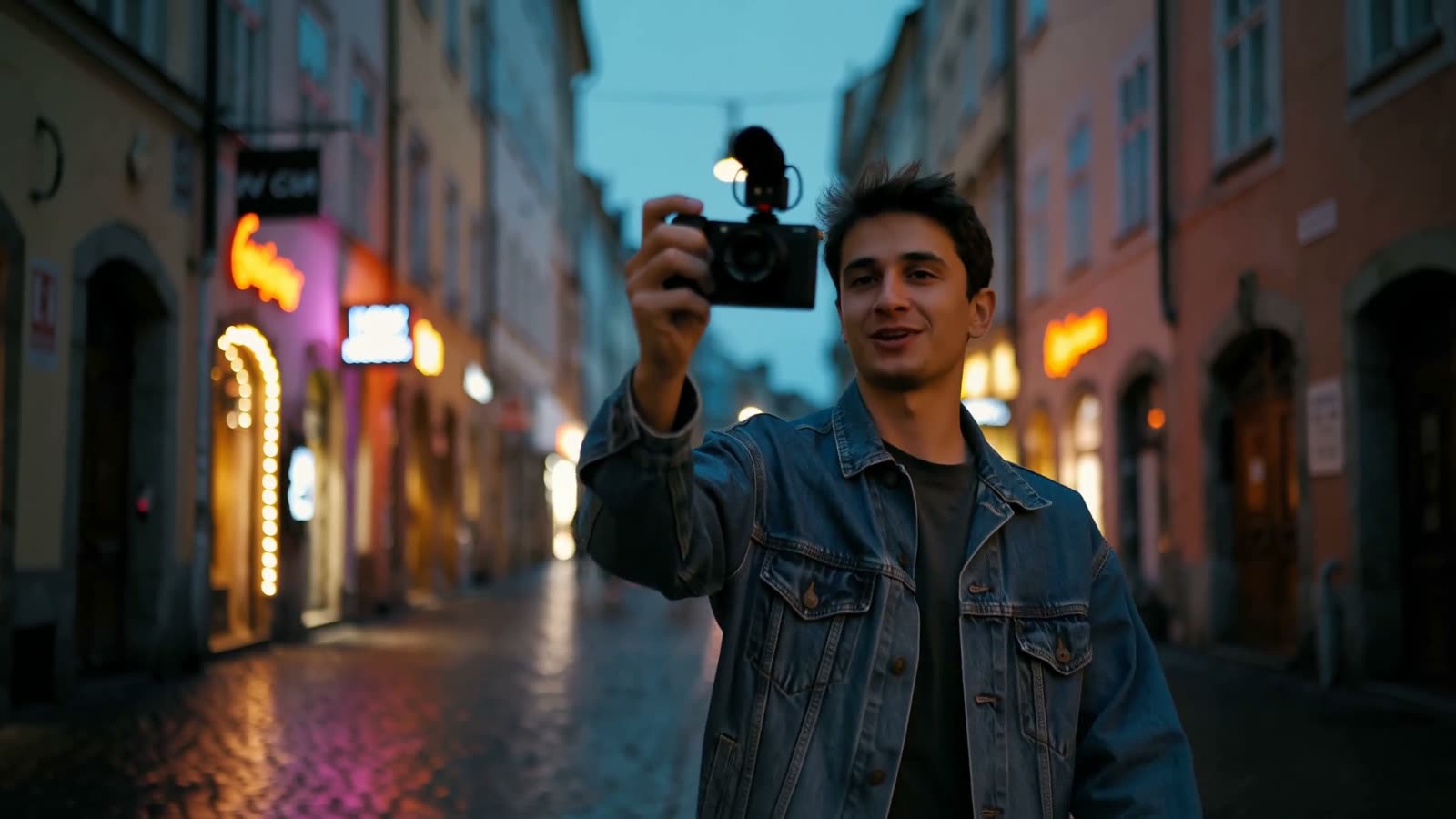
If you run it over your last shot, keep that shot calm. A static or slow frame, or a copy of it with Gaussian Blur applied, keeps the thumbnails easy to read. A busy handheld shot fights with them.
Making the end screen work
- Talk over it. Point at the video you want them to watch next and say why. A reason to click beats two silent thumbnails.
- Finish first. Wrap up, then cut to the end screen. Running it under your final point hides both.
- Keep other graphics clear. Don't run a subscribe animation or text in the same spot. YouTube's elements sit on top, and the two compete.
- Tease earlier. The Up Next corner card previews the next video before the end, with a progress bar that fills over the clip.
- Pick the videos on purpose. YouTube can choose a best-for-viewer video for you, but a direct follow-up to this topic usually makes the clearest next step.
Chapter titles
YouTube chapters come from timestamps in your description: the first must be 0:00, you need at least three, and each chapter has to be at least 10 seconds long. A chapter title in the video itself tells viewers who skip ahead where they've landed.
The Chapter Title template has a kicker (CHAPTER 01), a big headline that rises letter by letter, an underline swoosh and a subtitle. Use it full screen as a section break, or switch the background off to run it over footage.
- Match the headline to the chapter name in your description, so the progress bar and the video agree.
- Start the clip on the chapter's timestamp, so someone who jumps to it sees it animate in.
- Keep headlines to three or four words. The kicker carries the number and the subtitle carries the detail.
- As a full-screen break, around four seconds is enough. Over footage, hold it longer.
A consistent channel look
The End Screen, Chapter Title, Up Next and Subscribe Button are all in the Creator Pack, in one bold, rounded style with Montserrat included. Set your channel colors once in each, keep those styled clips in a template sequence, and copy them into every new video. The Creator Pack is $39 for ten templates plus the free Social Handle, and the license covers monetized videos and client work.