What a be right back screen is for
When you step away mid-stream, viewers need to know two things: you're coming back, and the stream hasn't frozen. A still image can't tell them the second one. A screen that's clearly moving can.
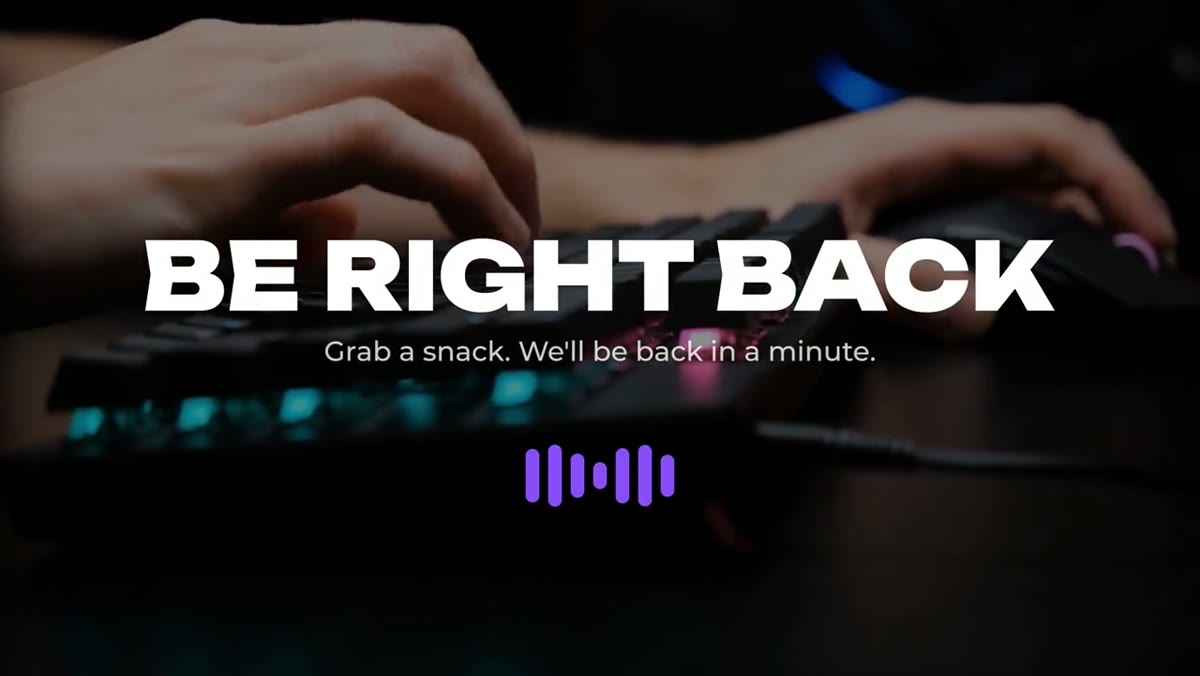
The Be Right Back template does that with a bold title and a looping equalizer, plus an optional subtitle in the editable version.
New to OBS? Quick walkthrough
- Make a scene for your breaks, or open the one you already use.
- In Sources, click + and choose Media Source (called Media in newer versions of OBS). Give it a name like BRB.
- Leave Local File ticked and browse to the WebM in the OBS Media Source folder of the download.
- Tick Loop. Leave Use hardware decoding when available off, because some GPU decoders drop the transparency.
- Click OK, then put your background below it in the Sources list: an image, your own artwork or a camera shot. OBS draws the source at the top of the list over the ones under it.
When you step away, switch to that scene. The same steps work in Streamlabs Desktop and most streaming apps that take a video file.
One thing to check before you leave: if your mic is set up as a global audio device in OBS, it stays live on every scene, including this one. Mute it before you walk away.
What's in the ready-made file
The file is a 1920x1080 WebM with a transparent background, the usual size of a stream canvas, so it fits without scaling. It's a seamless 17-second loop with no audio: BE RIGHT BACK and the equalizer stay on screen the whole time, and the last frame flows straight into the first, so with Loop on it runs as long as your break does.
Because the background is transparent, you choose what sits behind it. Dark artwork, a dimmed camera shot or a still from the game all work. Put it over your background in OBS and check you can read it from across the room before you go live.
Your own wording and colors
The ready-made file says BE RIGHT BACK. For a subtitle, other wording or your channel colors, use the .mogrt in the download:
- Install it in Premiere Pro 2023 or newer and drop it on a timeline set to your stream canvas, usually 1920x1080.
- Change the title, subtitle and colors in the Essential Graphics panel.
- Export with ProRes 4444 with alpha to keep the background transparent.
- Convert it to WebM with alpha for OBS. FFmpeg does it in one line:
ffmpeg -i export.mov -c:v libvpx-vp9 -pix_fmt yuva420p export.webmThen load the WebM in OBS the same way as above. The After Effects project is in the download too, built at 4K, if you want to change the design itself.
The rest of the set
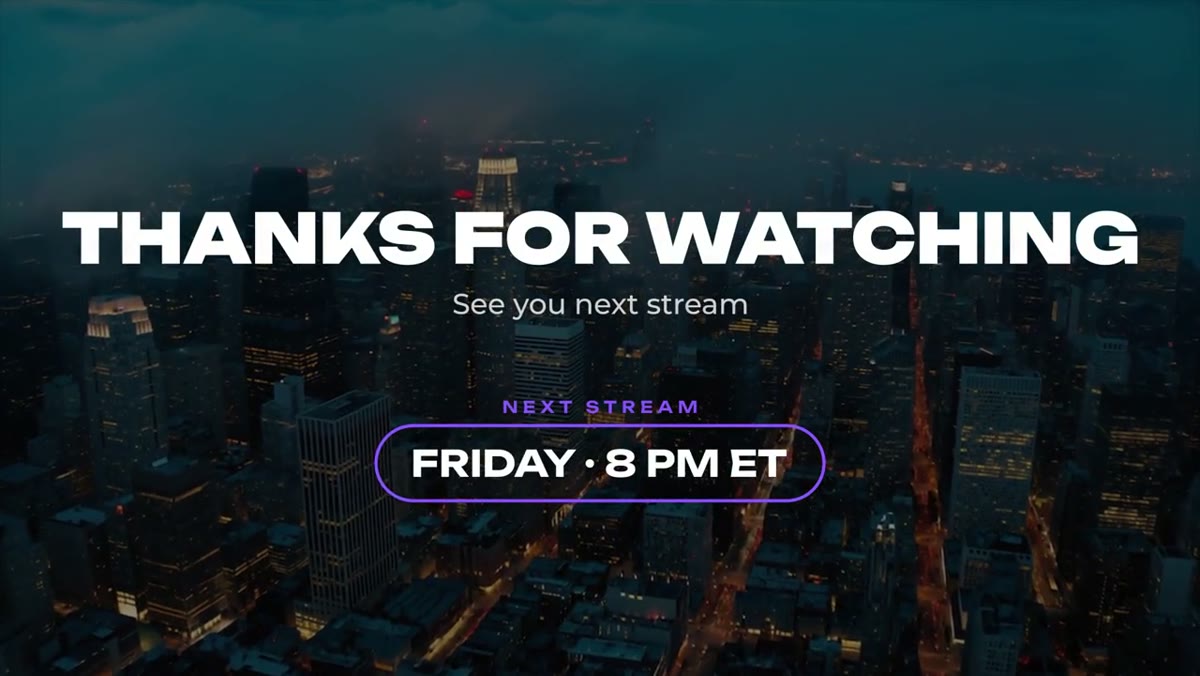
Be Right Back is one of three stream scenes in the same style. Starting Soon counts down to your start, and Stream Ending signs off with your next stream time. All three are in the Livestream Pack with alerts and overlays, ten templates for $39. For how the whole set fits together on stream, see stream overlays for Twitch and YouTube.