Two countdowns, two styles
- Starting Soon: for streams, webinars and launches. A real-time clock inside a progress ring that empties as time runs out. At zero the label flips to We're Live, or whatever you type. Neon violet by default, with Unbounded and Montserrat.
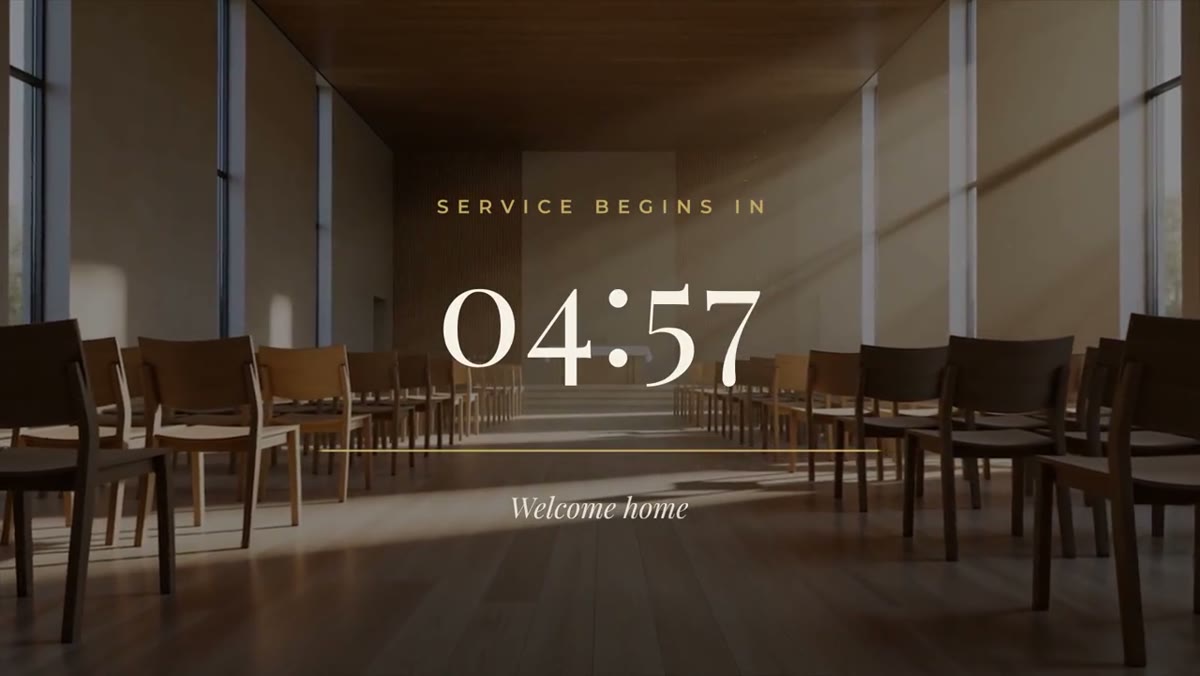
- Service Countdown: for churches and events. A real-time clock in serif type, a gold line that shortens as the clock runs down, and a welcome line. Cream, navy and gold by default, with Playfair Display and Montserrat.
Both count down from anything up to 20 minutes, and every color is editable, so either can be restyled for a conference, a class or a product launch.
Why real time matters
Plenty of countdown graphics are animations of a countdown: ten seconds of ticking numbers that look like a clock but don't keep time. Stretch one to fill five minutes and the seconds crawl.
These work differently. The clock is driven by the clip's own time, so one second on screen is one real second, and the ring or line tracks the actual time left. A ten-minute countdown takes exactly ten minutes and reaches zero on the frame it should.
The ring on Starting Soon and the gold line on Service Countdown matter too. Someone glancing at a screen across a room can tell roughly how long is left without reading the numbers.
Setting one up
- Drop the template on the timeline.
- In the Essential Graphics panel, set Countdown from in seconds: 60 for one minute, 300 for five, 600 for ten, 1200 for twenty.
- Trim the end of the clip to that length plus about five seconds, so the zero moment is visible.
- Edit the labels, colors and position. Switch Show background off to lay the clock over footage or your own artwork.
- Export and play it where you need it: on a stream, a lobby screen or at the start of a service.
Two rules keep the time honest. Never change the clip's speed or use Rate Stretch, because that changes how fast the clock runs. And set the start time in the Countdown from field instead of trimming the front of the clip.
Useful tricks
- Hold a fixed time. Turn Clock running off and the display holds your start value, which is useful for thumbnails, schedule posts and a paused state.
- Longer than 20 minutes. Run announcements or a holding slide first, then start the countdown for the final stretch.
- Running late. Make the clip a few minutes longer than the count. It holds at zero, which reads better than a clock that resets.
- Any frame rate. The clock follows time, not frames, so it keeps correct time in a 24, 30 or 60 fps sequence.
- Transparency. With the background off, export ProRes 4444 with alpha to lay the clock over other video in your streaming or playback software.
- Leading into a recording. If the countdown opens a pre-recorded program, such as a webinar replay or a recorded service, put both in one sequence with the countdown first, so zero cuts straight into the program.
Counting up instead
If you need a number that climbs rather than a clock that falls, look at the Stat Counter. It counts up to your stat with a prefix, suffix, label and progress bar, and you set the start and end values, decimals and count speed. For fundraising and sub goals, the Goal Bar counts to your current total and fills toward the target.
Starting Soon is in the Livestream Pack and Service Countdown is in the Church & Ministry Pack, $39 each, or get both, and every other pack, with LaunchFrame Unlimited. Each ships as a Premiere Pro .mogrt plus a 4K After Effects project, with no plugins.