What a starting soon screen is for
The first minutes of a stream are when viewers arrive, notifications go out and chat says hello. A starting soon screen gives that time a shape. A countdown does it better than a static card for two reasons: people see exactly how long they'll wait, and a clock that's clearly moving tells them the stream hasn't frozen.
Five to ten minutes is the usual range. Shorter, and people who clicked the notification late miss the start. Much longer, and early viewers drift off. The Starting Soon template counts down from anything up to 20 minutes.
Using Premiere Pro for a video or edit
Use the Premiere version when you need a countdown video for an edit, replay or player that does not take a Browser Source.
- Drop the template on the timeline and select it.
- In the Essential Graphics panel, set Countdown from in seconds: 300 for five minutes, 600 for ten, up to 1200.
- Change the Label (STARTING SOON) and the Label at zero (WE'RE LIVE) if you like. STREAM STARTS IN and HERE WE GO work well too.
- Trim the end of the clip to the countdown length plus about five seconds, so the flip at zero is on screen before you switch scenes.
- Set the colors to your channel's, and switch Show background off if you want the countdown over your own artwork or a camera shot.
Two things to avoid. Don't change the clip's speed or use the Rate Stretch tool, because the clock runs on the clip's own time and would run fast or slow. And set the start time with the Countdown from field, not by trimming the front of the clip.
Turn off Clock running to freeze the display at your start time. That's handy for a thumbnail or a schedule post.
Getting it into OBS
The simplest route is the live Browser Source. Sign in to your library, copy the private URL for Starting Soon, then add a Browser source in OBS, paste the URL and set it to 1920x1080. The background is transparent. The Starting Soon OBS setup page has the full steps.
The URL already has a ?, so add options with &: &minutes=10 for a ten-minute count, or &target=19:30 for the next 7:30 PM on the OBS computer. Target wins when both are present. Use &headline=Stream%20starts%20in for your own text and &accent=%23ff3b2f for a six-digit hex color.
- A minutes count starts when the page loads. Tick Refresh browser when scene becomes active if you want it to restart every time you switch to the scene.
- Leave Shutdown source when not visible off to keep it running between scenes.
- A target count picks up the real time left after a reload.
- At zero, the clock holds at 00:00 and the headline changes to WE'RE LIVE in the accent color.
If you need a video for an edit or another player, export the finished clip from Premiere and add it as a Media Source. Use H.264 with the background on, or ProRes 4444 with alpha for a transparent export. Leave Loop off and tick Restart playback when source becomes active.
What else to put on the screen
The countdown carries the screen on its own, but a few additions help:
- Your socials. The Socials Bar cycles three platforms and handles in one pill, which sits under the countdown without crowding it.
- A music credit. If you play music while people wait, the free Now Playing pill shows the track and artist. Make sure you have the rights to stream it.
- Today's topic. One short line about what's coming gives early arrivals a reason to stay. Add it as a text source in OBS.
Resist adding more. Chat boxes, goals and alerts can wait until you're live.
Matching the rest of the stream
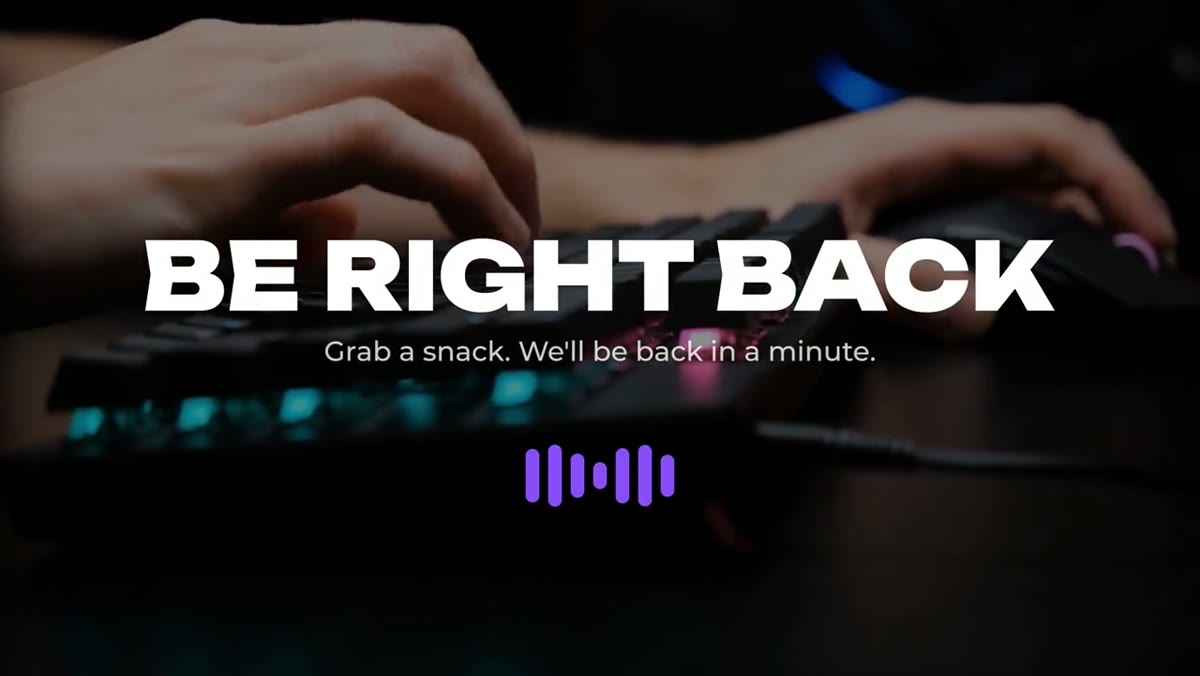
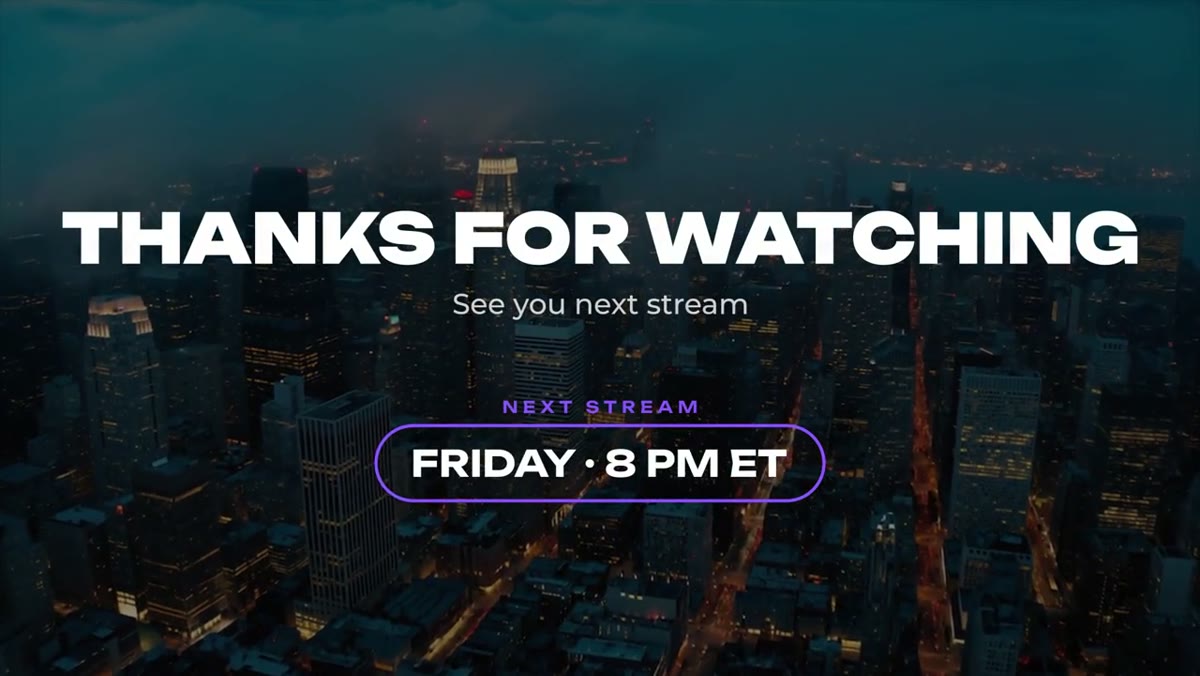
A starting soon screen works best as the first of a set. Be Right Back holds your audience with a looping equalizer while you step away, and Stream Ending signs off with your next stream time. All three are in the Livestream Pack for $39, in the same editable neon violet style, with the Unbounded and Montserrat fonts included. Each ships as a Premiere Pro .mogrt and a 4K After Effects project. Starting Soon also includes the live OBS Browser Source.