What a stream ending screen does
Cutting straight to black loses the people who were still watching. An ending screen gives them a clear finish, and it gives you something on screen while you raid another channel or say goodbye in chat.
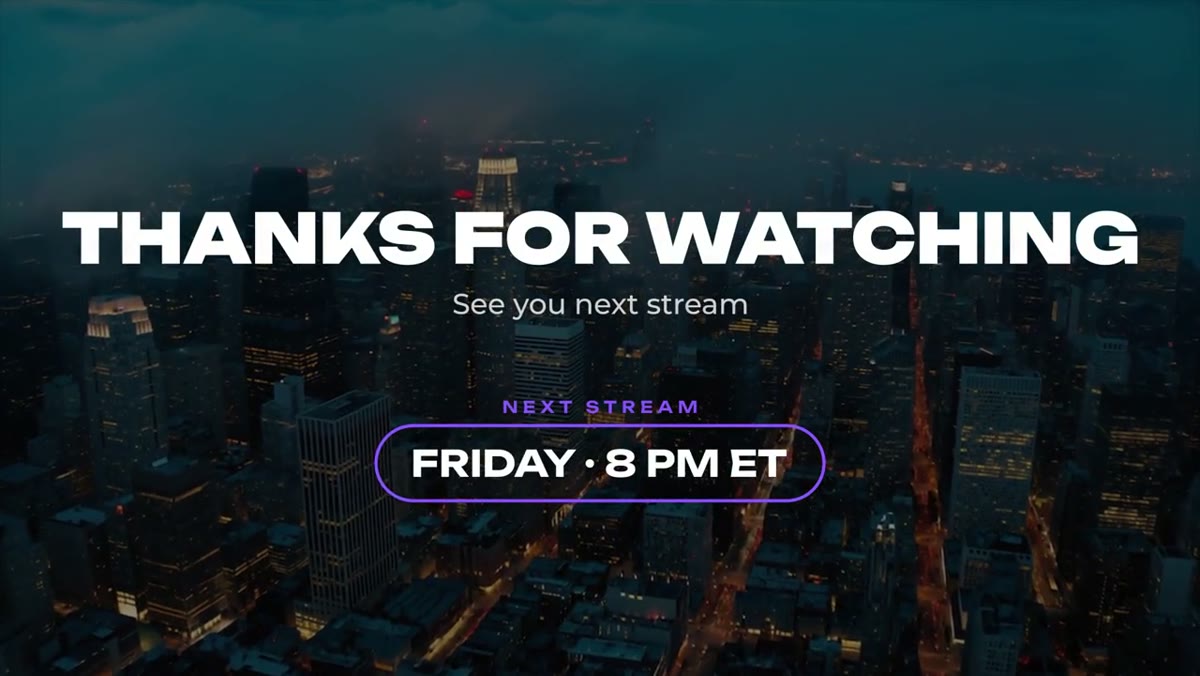
The Stream Ending template puts Thanks for Watching in bold display type with a sign-off line under it. The editable version adds your next stream time in an outlined pill.
New to OBS? Quick walkthrough
- Make a scene for the end of your stream.
- In Sources, click + and choose Media Source (called Media in newer versions of OBS).
- Leave Local File ticked and browse to the WebM in the OBS Media Source folder of the download.
- Leave Use hardware decoding when available off, because some GPU decoders drop the transparency.
- Click OK, then put your background below it in the Sources list: your artwork, a camera shot or a loop.
Switch to the scene when you wrap up. The same steps work in Streamlabs Desktop.
What's in the ready-made file
The file is a 1920x1080 WebM with a transparent background, 30 seconds long with no audio. It shows THANKS FOR WATCHING and See you next stream, with no time, pill or label, so it works for any schedule.
The text animates in, holds, and clears at the end. If you want it up for longer while you raid or read chat, tick Loop and it replays its entrance every 30 seconds. Leave Loop off to sign off once.
Putting your next stream time on it
The exact time is the one part you set yourself. Install the .mogrt in Premiere Pro 2023 or newer, type your next stream time and sign-off line in the Essential Graphics panel, and export with alpha as ProRes 4444. Then convert it to WebM with alpha for OBS:
ffmpeg -i export.mov -c:v libvpx-vp9 -pix_fmt yuva420p export.webmIf you stream on a regular schedule, export one version with your usual day and time and reuse it every stream. The 4K After Effects project is in the download too, if you want to change the design itself.
Using it outside the stream
If you upload your VODs or a highlight to YouTube, the ending screen works there too. YouTube end screens run for the last 5 to 20 seconds of a video, so leave the Stream Ending clip on long enough to hold the subscribe and video links. For a screen built for that, see the YouTube end screen template.
The rest of the set
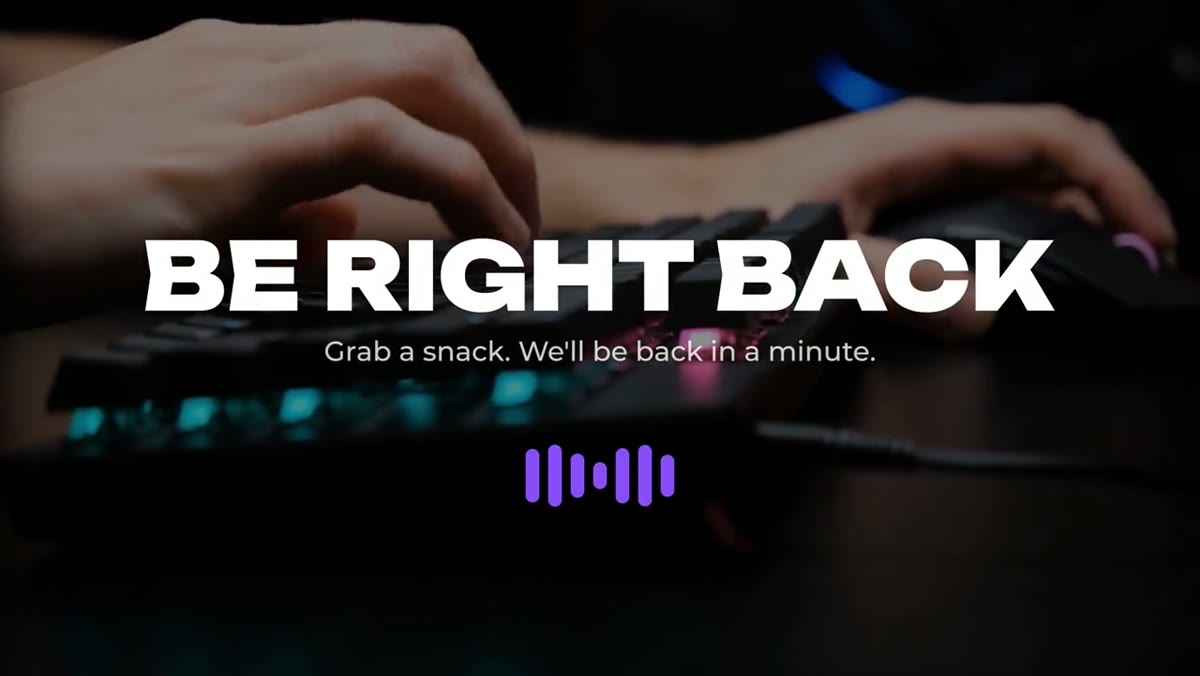
Stream Ending is one of three scenes in the same style, with Starting Soon for the start and Be Right Back for breaks. All three are in the Livestream Pack with alerts and overlays, ten templates for $39. After you buy, the files are in your library. For the whole set, see stream overlays for Twitch and YouTube and the be right back screen page.