Why a live countdown
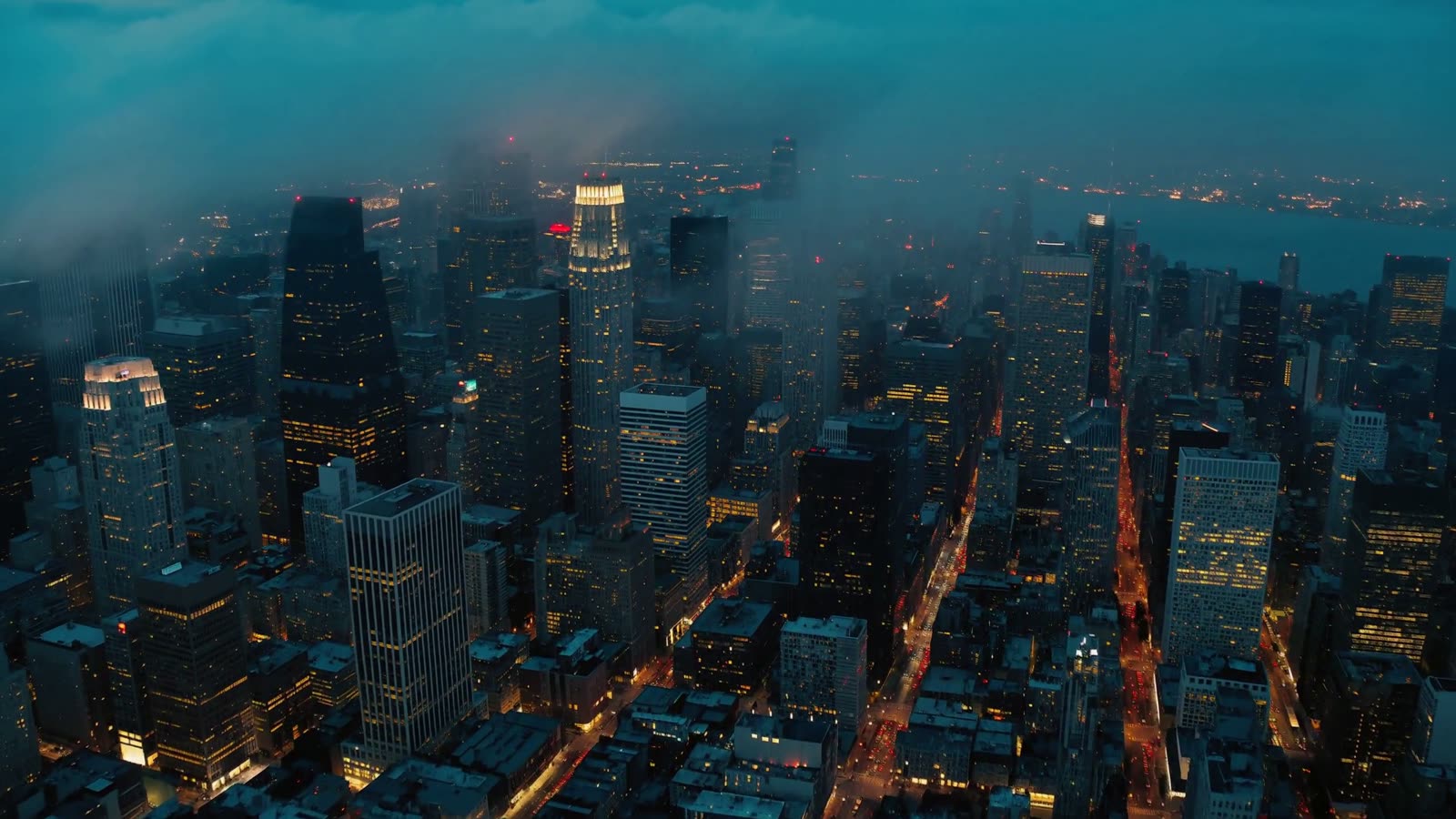
A countdown baked into a video has a fixed length. Change the time and you're back in Premiere, exporting again. A live countdown runs in OBS itself, and everything about it is set in the link you paste: how long, or what time to count to, the headline and the accent color.
Counting to a clock time is the part a video can't do. Set the countdown to 19:30 and it hits zero at 7:30, whenever you happen to switch to the scene.
Set it up in OBS
- Sign in to your library and copy the private Browser Source URL for Starting Soon.
- In OBS, open your Starting Soon scene. In Sources, click + and choose Browser.
- Paste the URL, set Width to 1920 and Height to 1080, and click OK.
- Add your options to the end of the URL, below.
The full steps are on the Starting Soon OBS setup page. The link is private and checked against your LaunchFrame access each time OBS loads it, so don't share it.
Building the link
Your library URL already has a ? in it, so add each option with &:
&minutes=10counts down from ten minutes. Without it, the count runs five minutes.&target=19:30counts down to the next 7:30 PM on the computer running OBS. For a set date, use an ISO time with your offset, such as2026-10-12T19:30:00-05:00. If you add both, target wins.&headline=Stream%20starts%20inreplaces STARTING SOON. Spaces go in as%20.&accent=%23ff3b2fsets the ring color to any six-digit hex color. The#goes in as%23.
So a ten-minute count with your own headline and color ends with &minutes=10&headline=Stream%20starts%20in&accent=%23ff3b2f. Countdowns of an hour or more show hours too.
Restarts, zero and the background
- Minutes start when the page loads. A minutes countdown begins when OBS loads the source, and starts over whenever OBS reloads it. If you want it to start fresh every time you switch to the scene, tick Refresh browser when scene becomes active.
- Target doesn't restart. A reload just picks up the time left to your target, which makes it the safer choice when you have a set start time.
- Keep it running between scenes. Leave Shutdown source when not visible off, or OBS reloads the countdown when you come back to the scene.
- At zero, the clock holds at 00:00 and the headline swaps to WE'RE LIVE in your accent color. It stays there until you switch scenes, so running a minute late looks fine.
- The background is transparent, so the ring sits over whatever is under it in the Sources list: your artwork, a camera shot or a loop.
A couple of additions help without crowding it. The Socials Bar cycles your platforms and handles in one pill, and the free Now Playing pill credits the music you play while people wait.
Other countdown styles
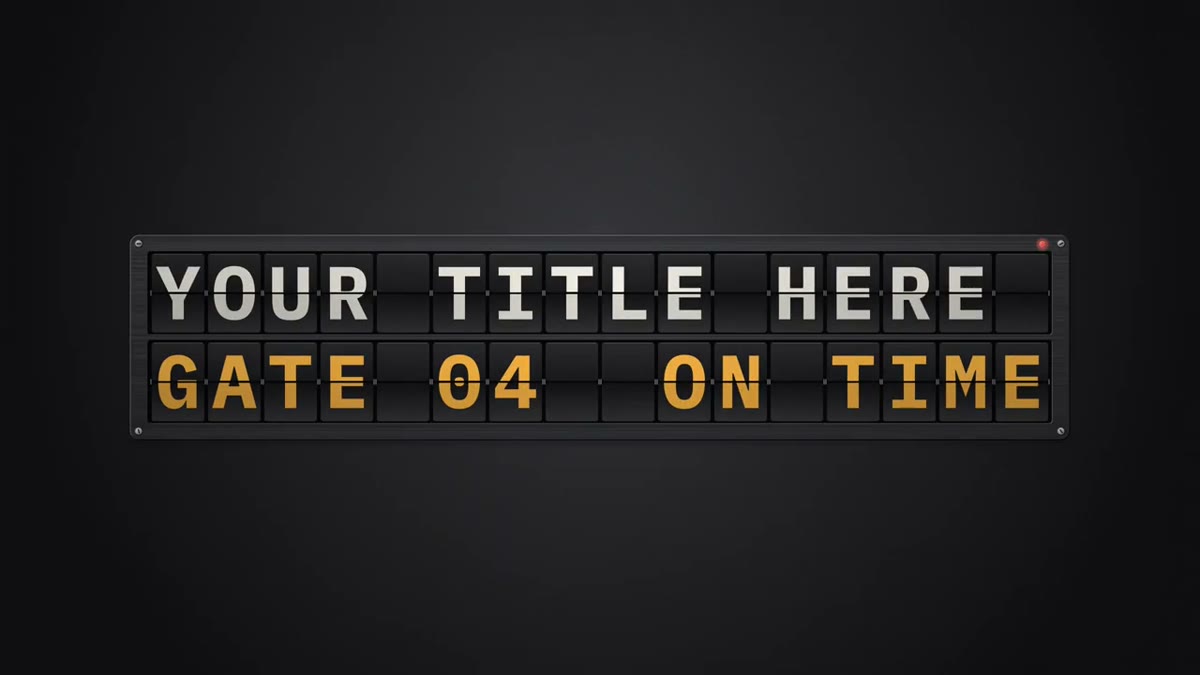
- Flip Clock Countdown runs live in OBS the same way. Cards flip only when their digit changes, and the colon lamps blink at zero. It's in Retro-Tech Titles. See the Flip Clock OBS setup.
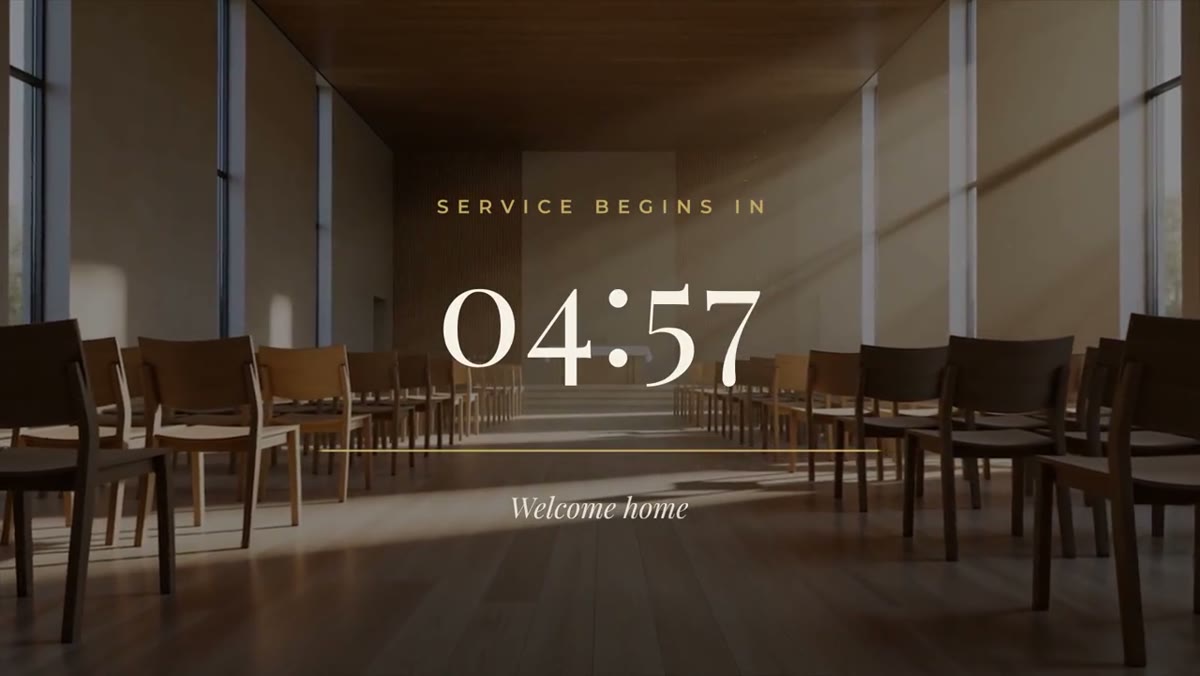
- Service Countdown is the serif version with a gold line that shortens, for church livestreams. It's in the Church & Ministry Pack. See the Service Countdown OBS setup.
Need the countdown as a video instead, for an edit or a replay? Starting Soon also ships as a Premiere Pro .mogrt that counts down in real time from up to 20 minutes. The guide to adding a real-time countdown to a livestream or video covers that route. Starting Soon is in the Livestream Pack, ten templates for $39.