The light leak templates
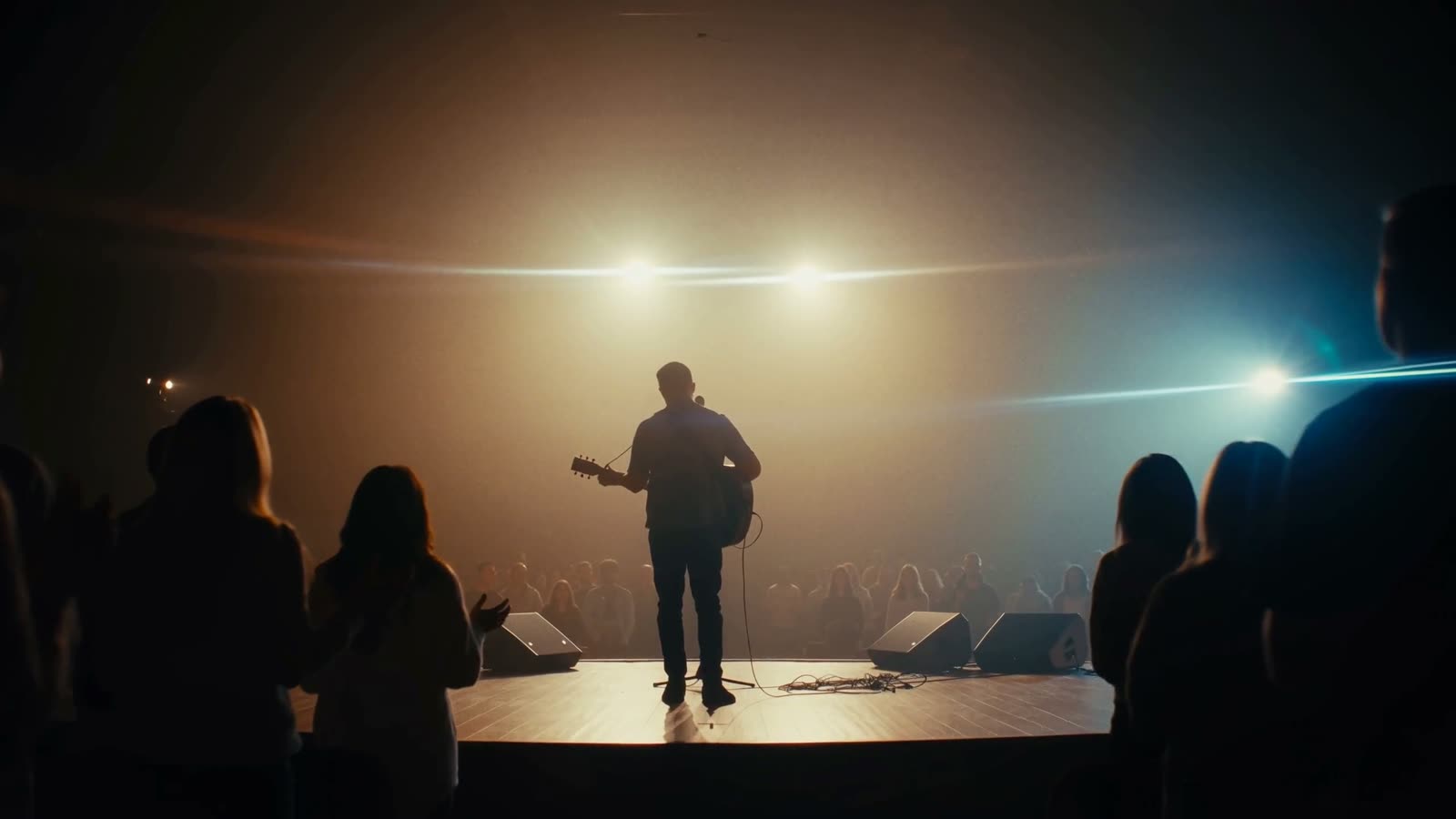
- Light Leak Transition: soft diagonal streaks of light build from a deep orange edge through amber to a cream blowout at the cut, with film grain, then recede the other way. Three colors, four directions, and grain and softness controls.
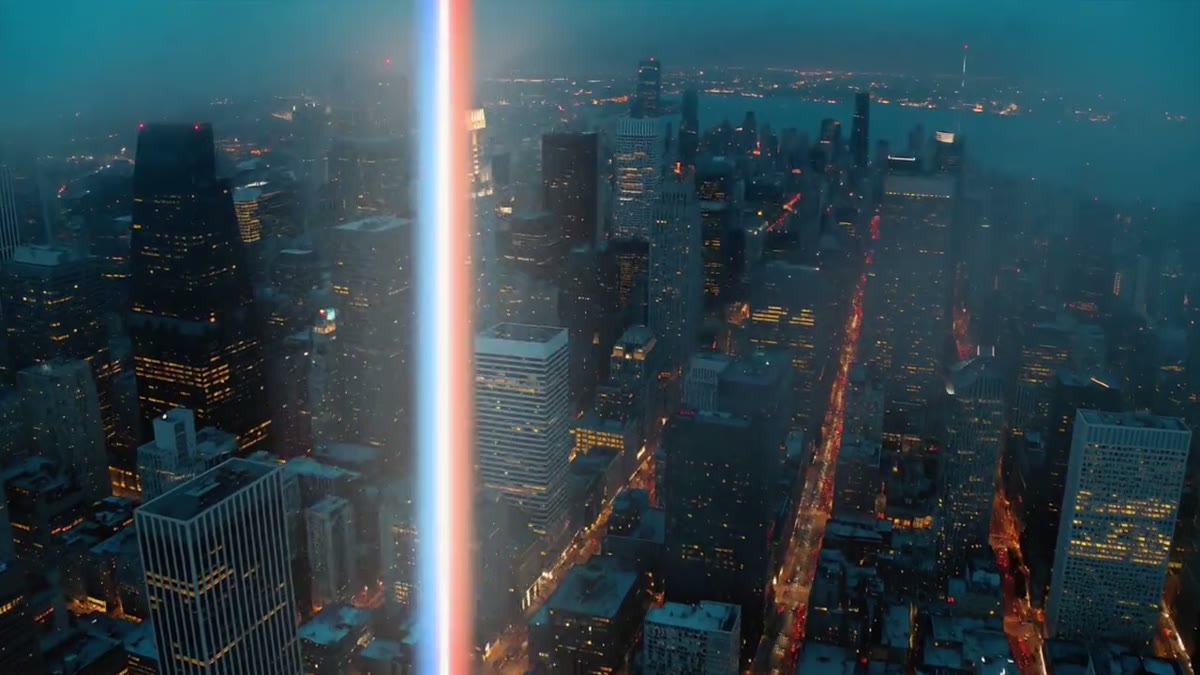
- Spectral Sweep Transition: a thin light bar with a blue fringe on one edge and red on the other crosses the frame and opens into a white flash at the cut. Fringe and glow are adjustable.
- Light Leaks Loop: not a transition, but a 20-second 4K loop of film leaks and burns on black, for laying over a whole section.
Using a light leak transition
- Install the .mogrt in Premiere Pro 2024 or newer.
- Drag it onto the track above a cut and center it on the cut. The light covers the whole frame at its midpoint, so the cut is hidden.
- Trim it to change the speed. The default is two seconds.
- Set the colors to suit the footage: warmer for golden-hour shots, closer to cream for bright, airy ones.
The transition is drawn on top of your clips rather than applied to them, so it works over any footage and doesn't need the clips to overlap.
Using the loop as an overlay
For the look of light leaking across a whole scene, put the Light Leaks Loop on the track above your footage and set its blend mode to Screen in the Effect Controls panel. The black drops out and only the light stays. Lower the opacity until it feels like part of the shot. The loop is an .mp4, so it works in any editor, and the After Effects project lets you change its colors and the leak, streak and flicker amounts.
Where they fit
Light leaks suit weddings, travel, music videos and anything shot in warm light. Use them at moments, such as the start of a section or a change of place, rather than on every cut. The transitions are in the Transitions Pack, fourteen transitions for $39, and the loop is in Grain Gradient Loops. After you buy, they're in your library. For a title with the same warm light, see the Light Sweep Title.