
LaunchFrame Live · For Mac · Add-on to Unlimited
Live backgrounds that move with the music.
Plug in your band's sound, pick a design, and send it to your screens over NDI®.
Free early-access beta
Testing is free. Needs a Mac with an M-series chip (M1 or later). Intel Macs aren't supported.
What it does.
LaunchFrame Live is a Mac app that listens to your band's audio and drives the backgrounds on your stage screens.
- Moves with the bandDesigns like Liquid Glass, Molten Wave and Light Warp speed up and slow down with your band feed. None is built to flash, and we check each one against the WCAG limit of three flashes in any second, at full speed with loud music. You can change the colors, shape and motion.
- Presets for every designStart from a preset, a one-click set of colors and settings, then change anything. Save the result as a visual.
- The loop LibraryOur 4K worship loops are inside the app. Browse them, download the colors you want, and take them live or add them to a set list like any other visual.
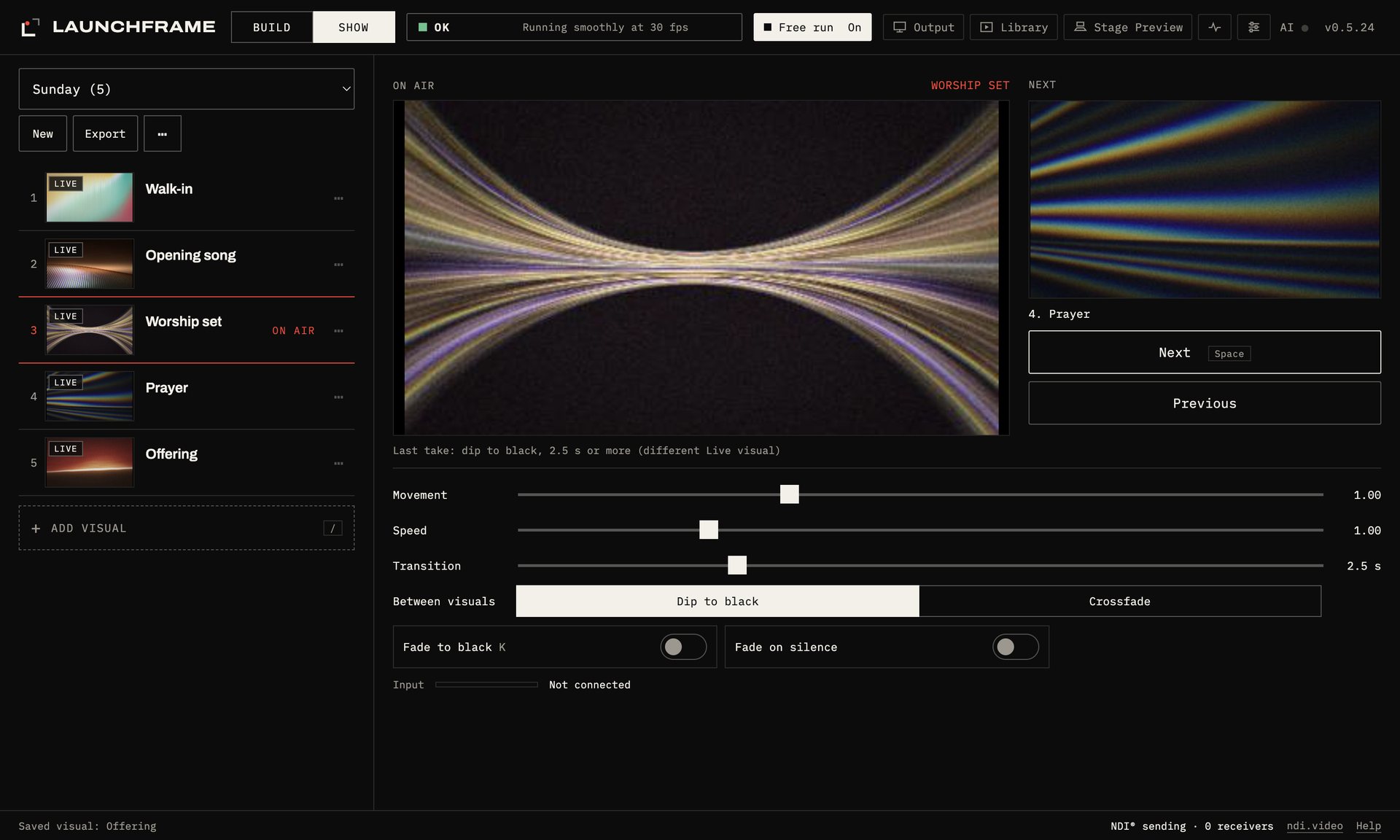
- Show mode and set listsSave your visuals ahead of time and line them up as a set list. During the service, switch to Show and move to the next one with a key press. Changes fade or dip through black. There are no hard cuts.
- Multi-screen NDI to ProPresenterLay out your stage once, with a center screen and two sides if you like. Up to four NDI outputs are cut from the same frame.
- Stage PreviewSee your screens in a 3D room before Sunday. It matches your outputs, and you can view it from the seats and export stills and clips.
- Groups, sharing and syncKeep saved visuals in groups. Send a visual or a whole set list to another Mac as one file. Or turn on sync, and the Macs on your license share the same visuals and set lists.
- Companion and Stream DeckA Bitfocus Companion module and a Stream Deck plugin come inside the app. Take a visual, go next or back, fade to black, free run. Both talk to the app on the same Mac.
- AI assistantConnect an AI assistant that supports MCP, like Claude, and ask for what you want: warmer, slower, for the altar call. The control server listens only on your own Mac, and you can switch it off.
- Free runOne switch ignores the audio and runs every design on a built-in virtual song, for rehearsals or when no feed is connected.
Designs to start from.
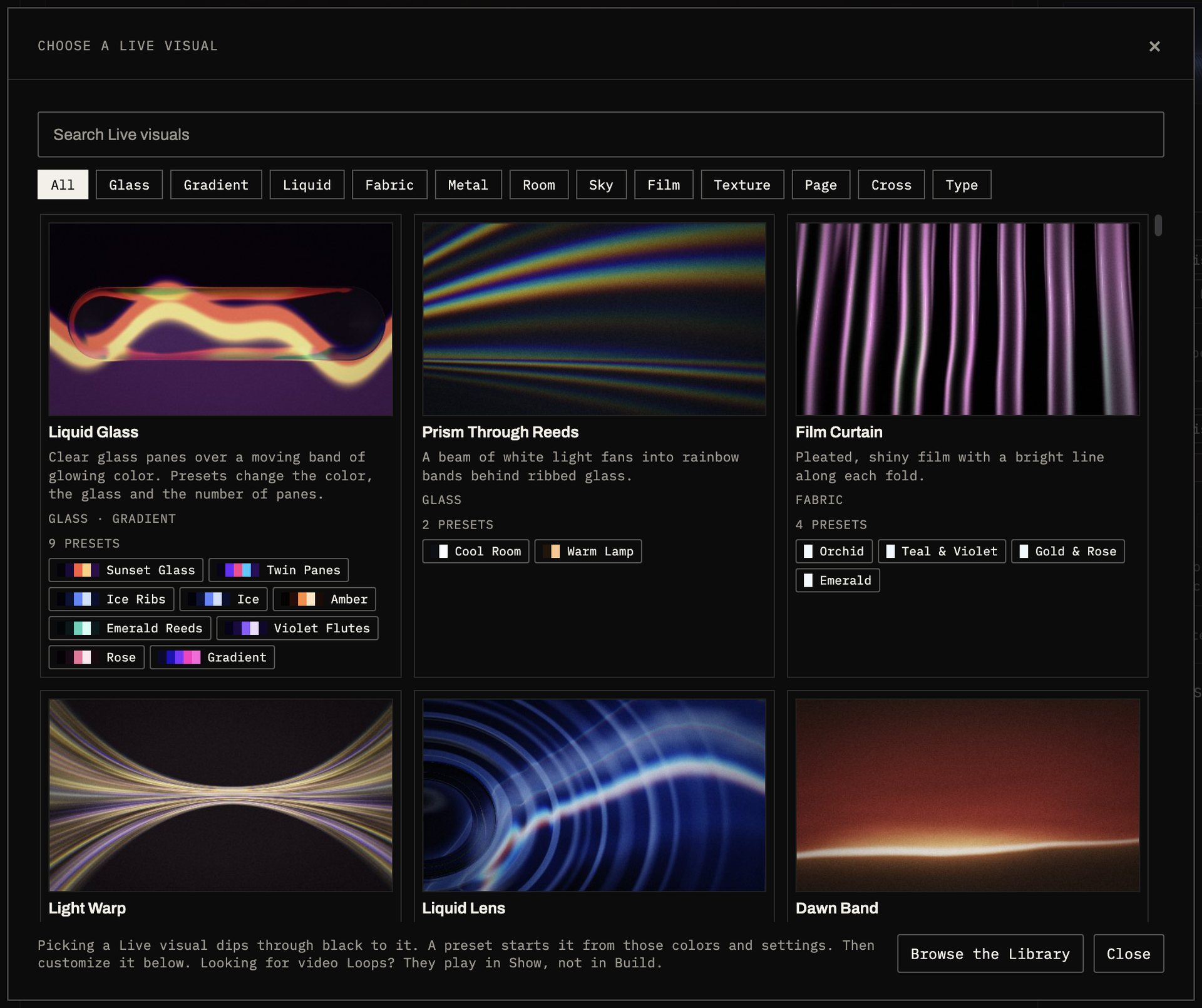
Each design comes with presets. Pick one, then change its colors, shape and motion until it suits your room.
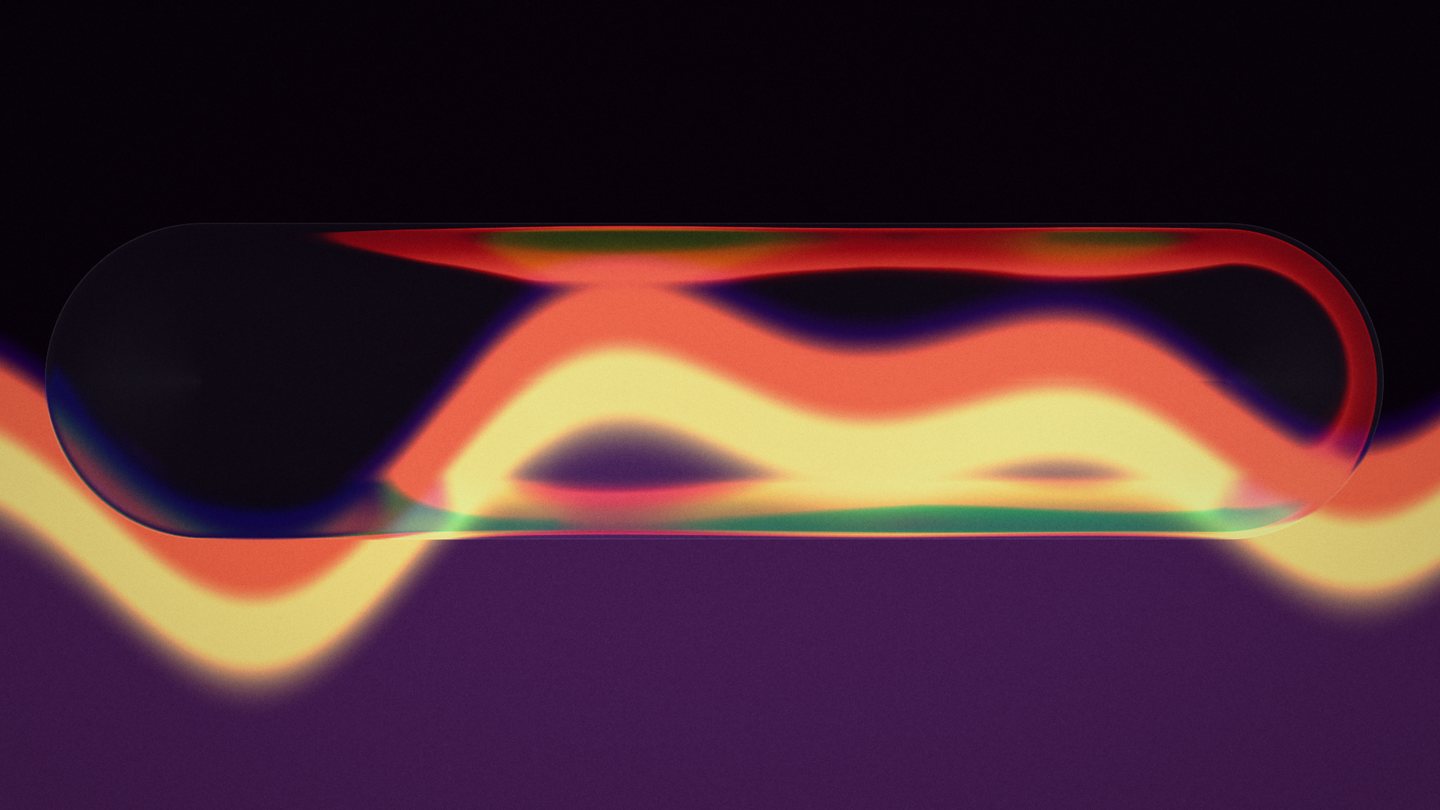
Liquid Glass
Sunset Glass, Twin Panes, Ice Ribs and more

Molten Wave
Clear glass or oil film
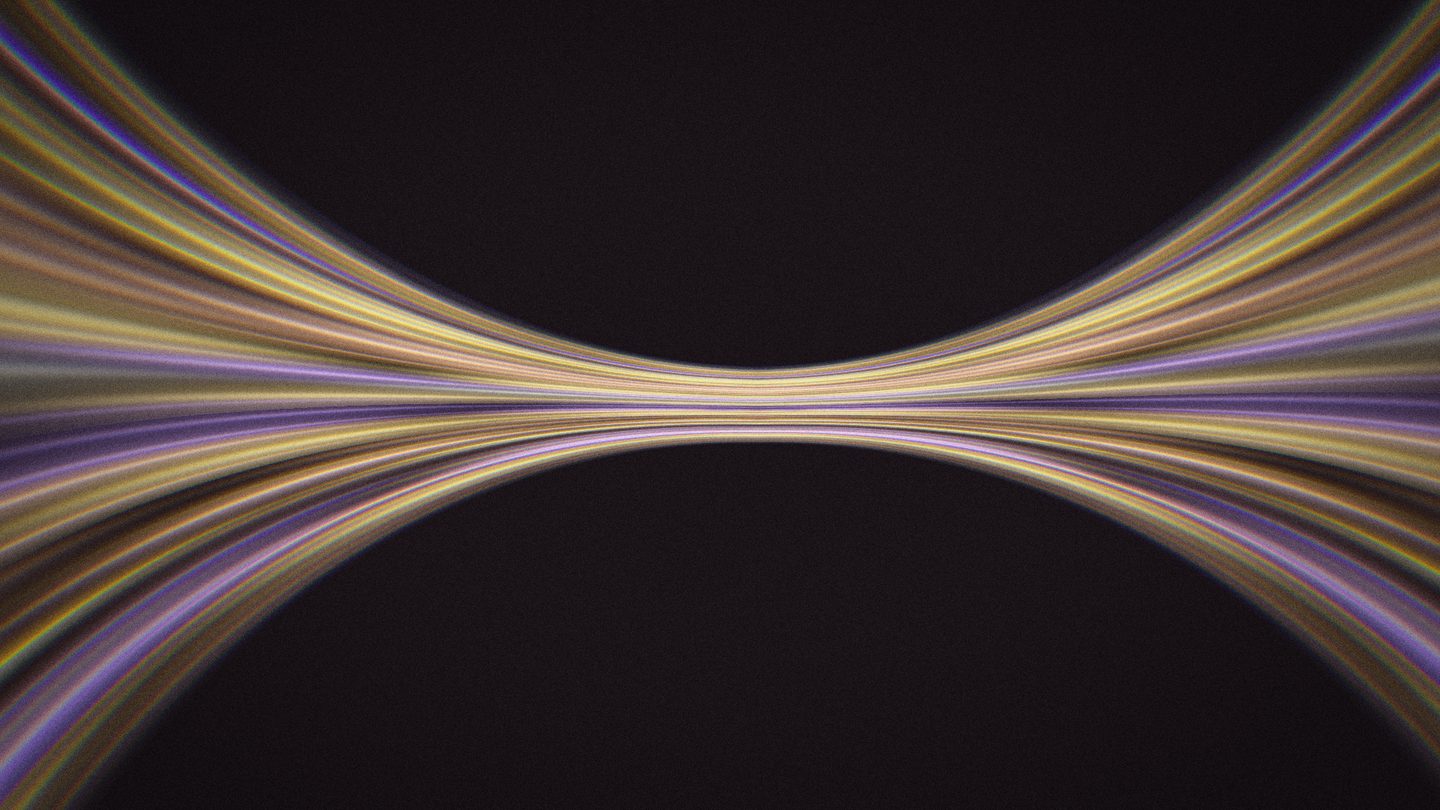
Light Warp
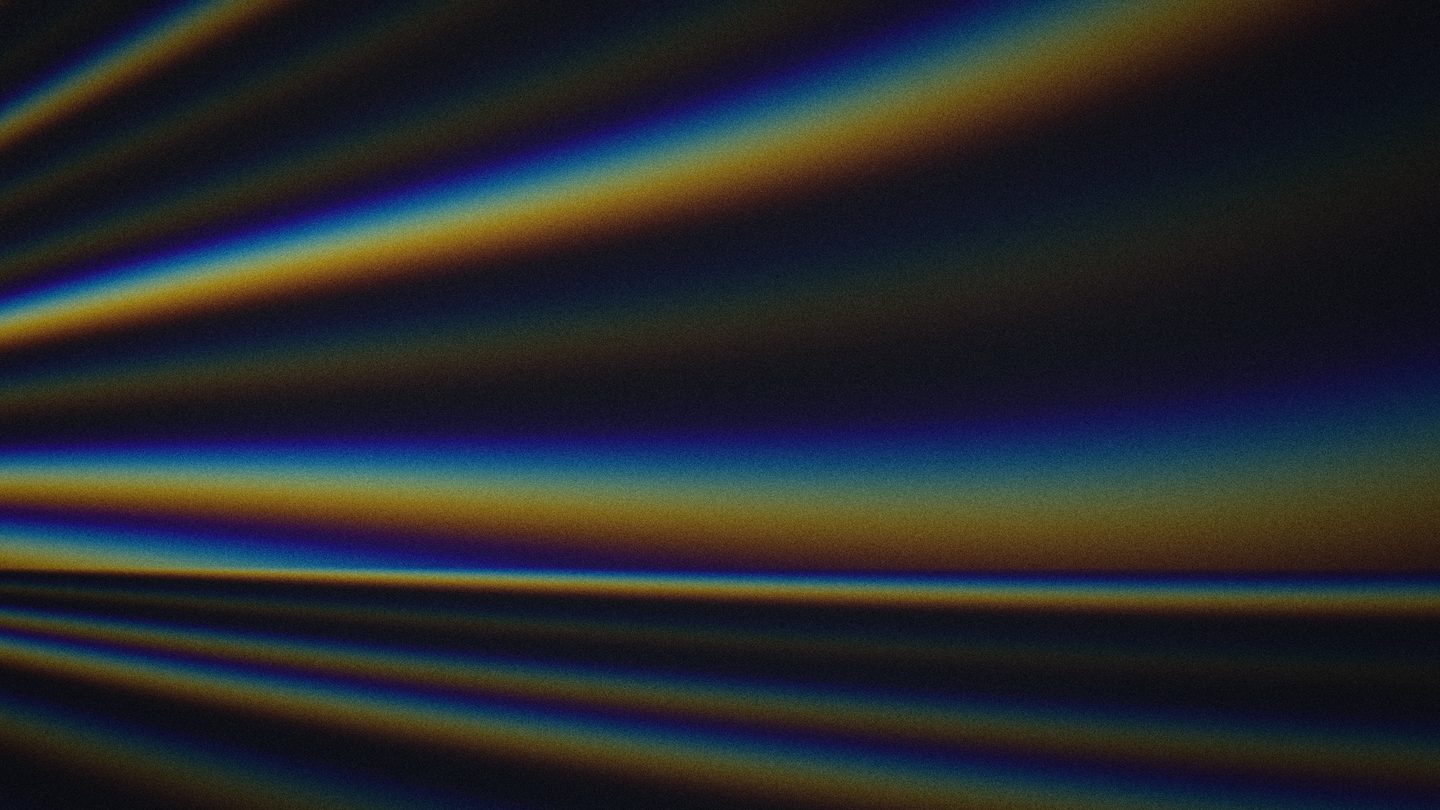
Prism Through Reeds

Film Curtain
Orchid, Emerald and more

Anodized Metal
Folded or louver

Dawn Band
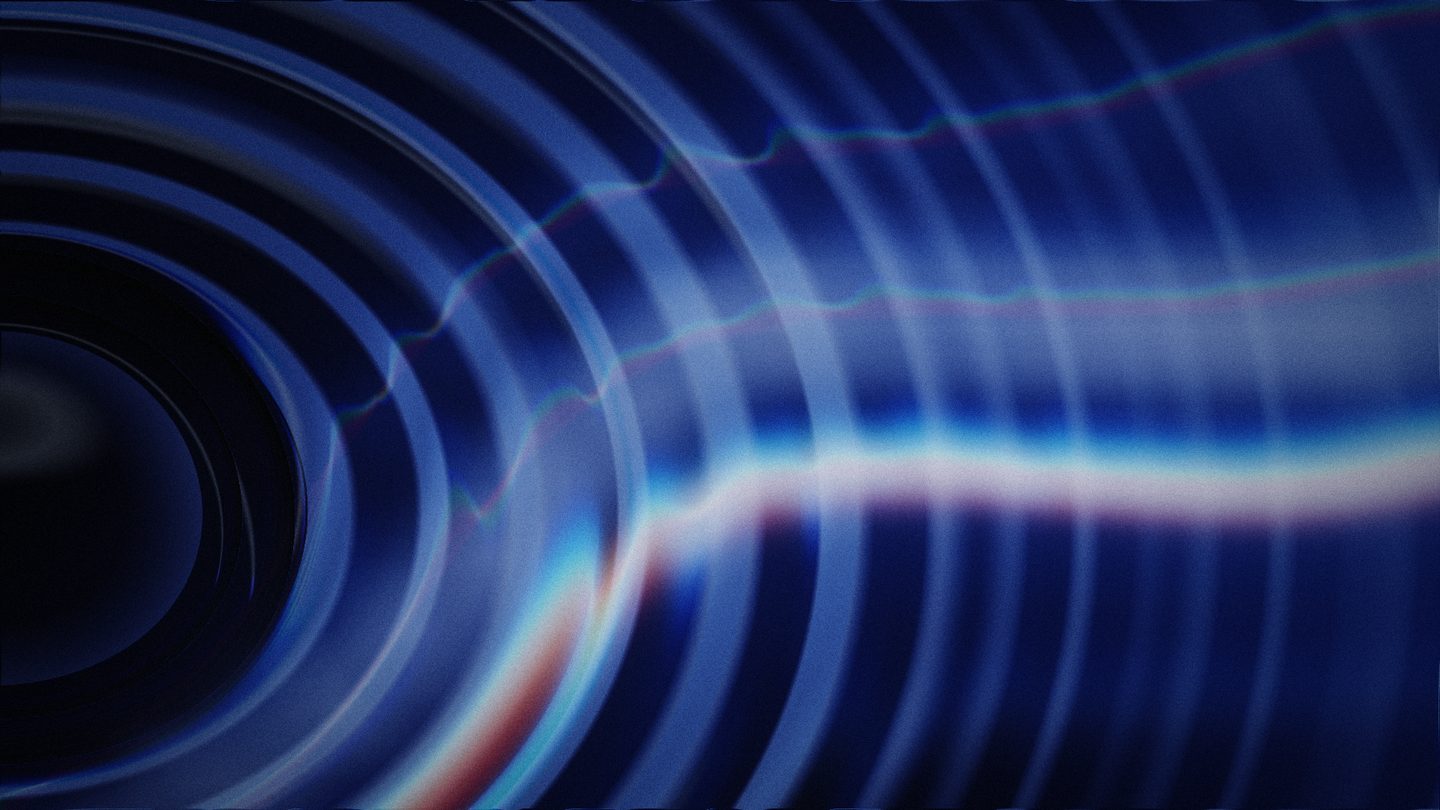
Liquid Lens
The loop Library.
Our 4K worship loops, inside the app. Browse them, download the colors you want, and use them like any other visual.
- Browse and download.Search the Library, or filter by pack, season or color. Pick a color and download it in 4K. Downloads run in the background, pick up again if the connection drops, and never touch the picture that's on air. Browsing and downloading need the internet.
- Use a loop like any visual.Take a loop live with a dip through black, or add it to a set list. Set its brightness, its speed and how much it glows with the music. Downloaded loops play from your Mac with no internet.
- Each screen or span across screens.With more than one screen, show the loop on every screen, give each screen its own loop, or stretch one loop across the whole stage so each screen shows its own part of one picture.
- What the trial and a license get.The free trial can download three loops. A license can download every loop that's ready. With no key after the trial, the Library is browse only, and the loops you already have keep playing.
Build mode and Show mode.
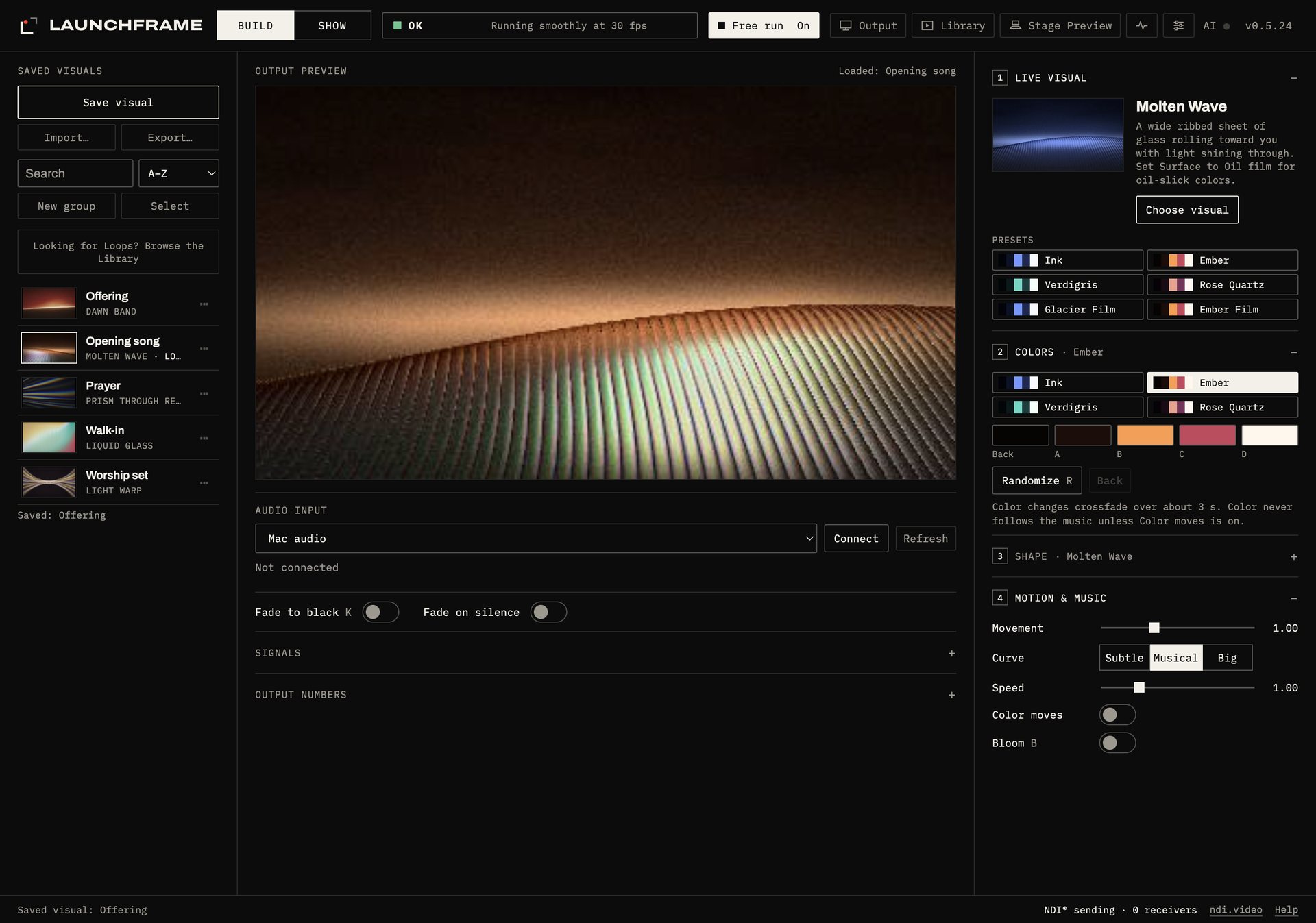
Build is where you make and save your visuals. Show is the view you run during the service, with only the controls that are safe to use live, so nothing gets changed by accident.
See it in the room first.
Stage Preview puts your screens in a 3D room, so you can see how it sits before anyone is in the seats.
- Your screens, in a room.A dark church stage with your screens built in. Pick a template (a big center wall, a center screen with sides, a small room with a projector), then move, turn and resize each screen.
- It matches your outputs.Each screen shows what one of your outputs is playing right now, and the room follows your outputs when you change them.
- View it from the seats.Overview, front of house, from the seats, or a plan from above. Drag to look around.
- Export stills and clips.A 1920 by 1080 still or a 10 second clip from any view, for the pastor, the tech team or the board.
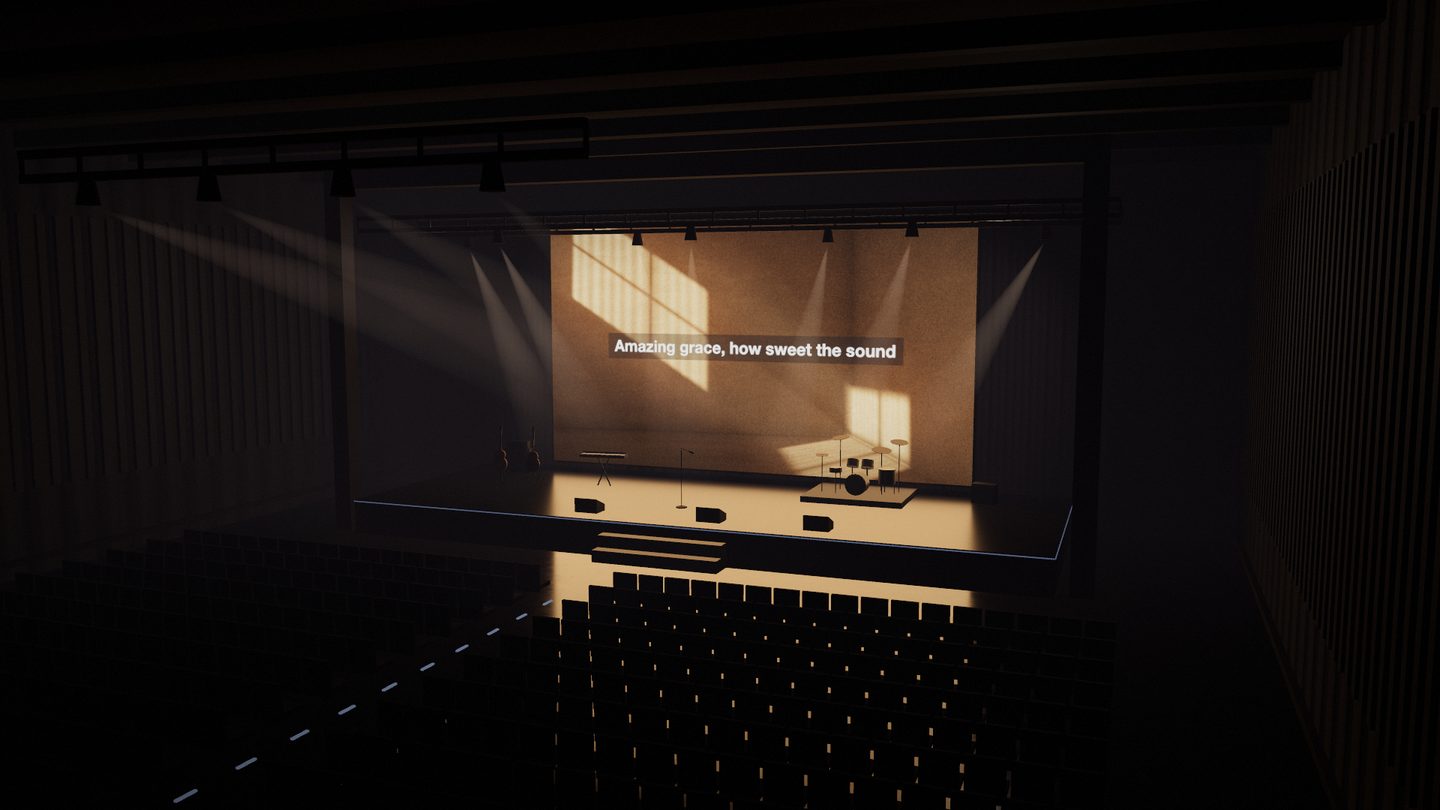
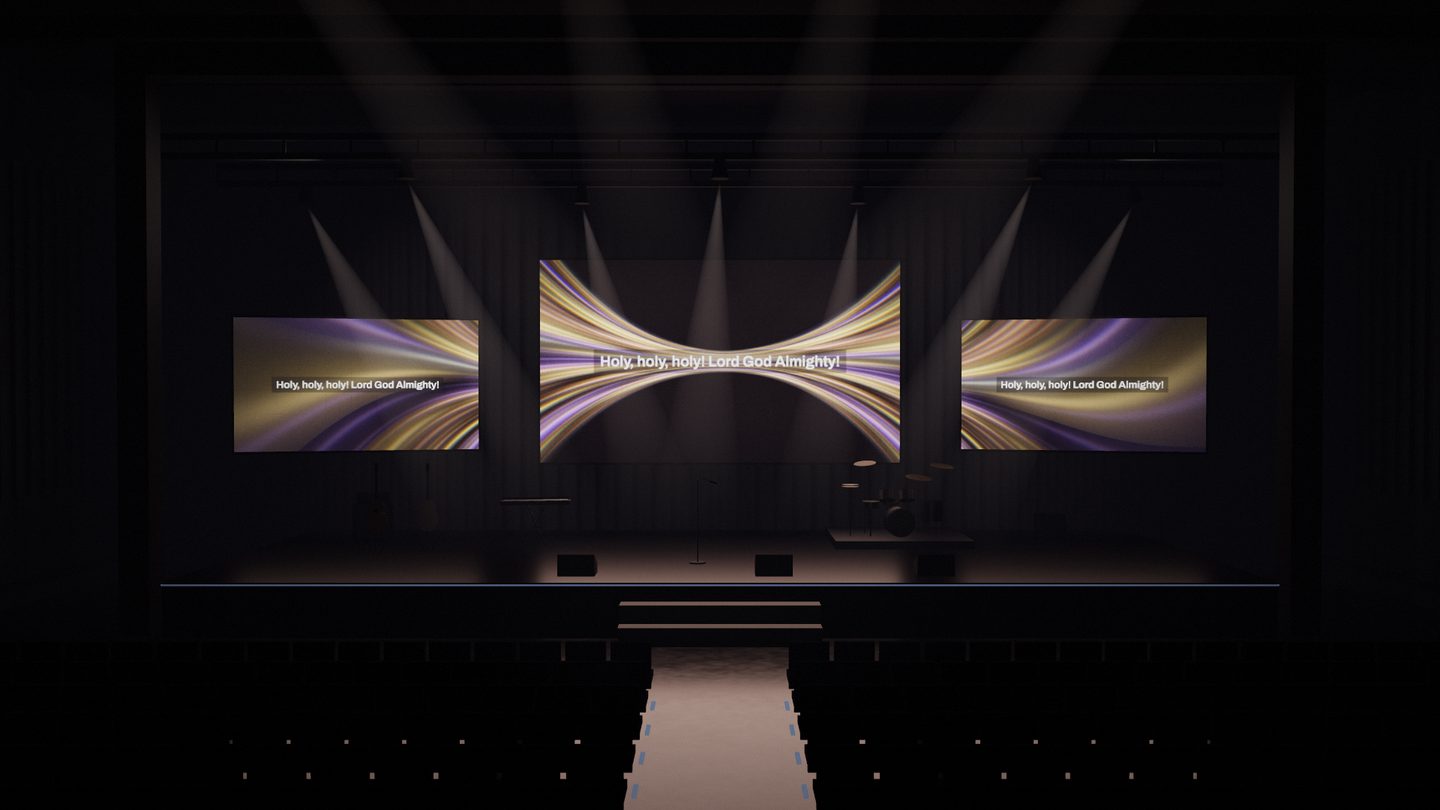
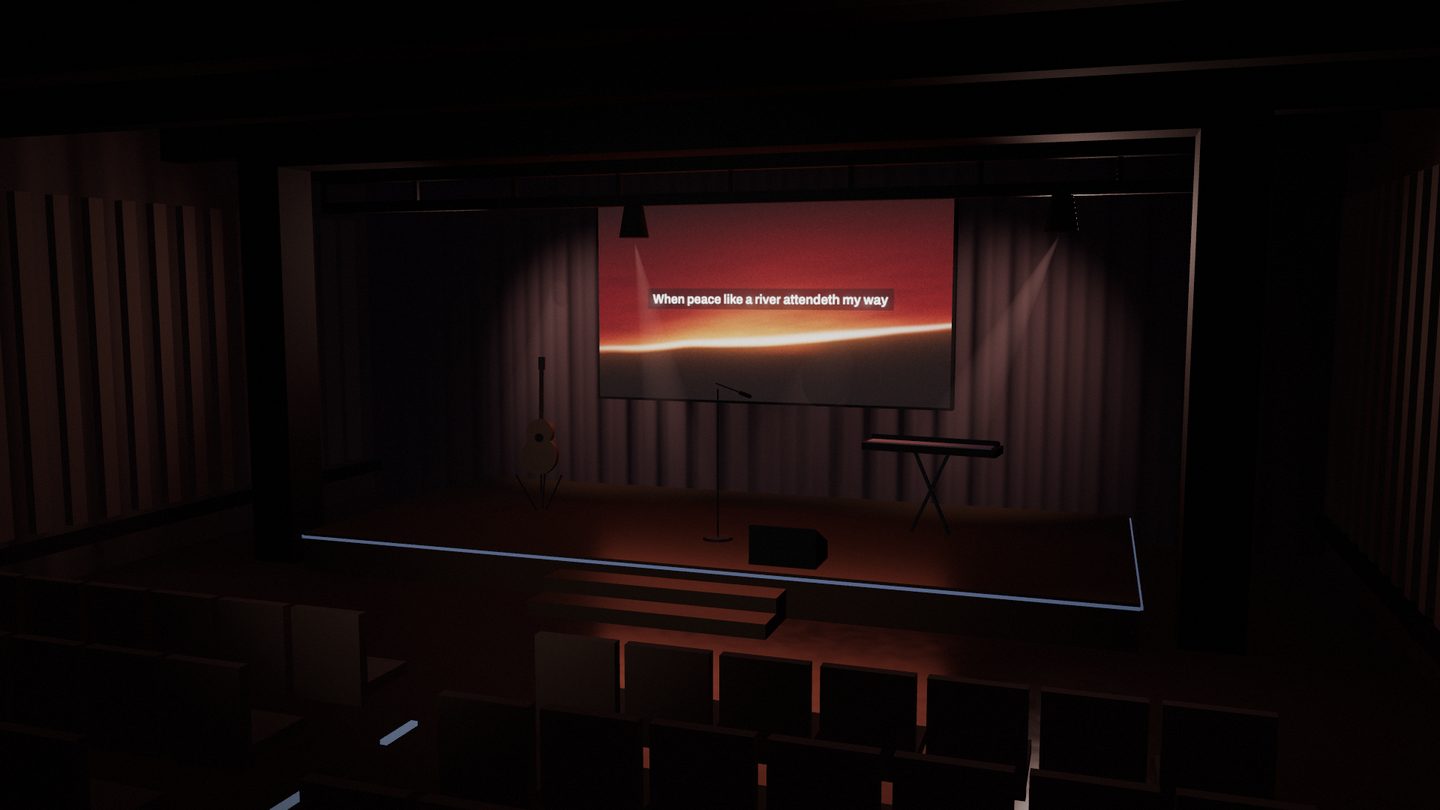
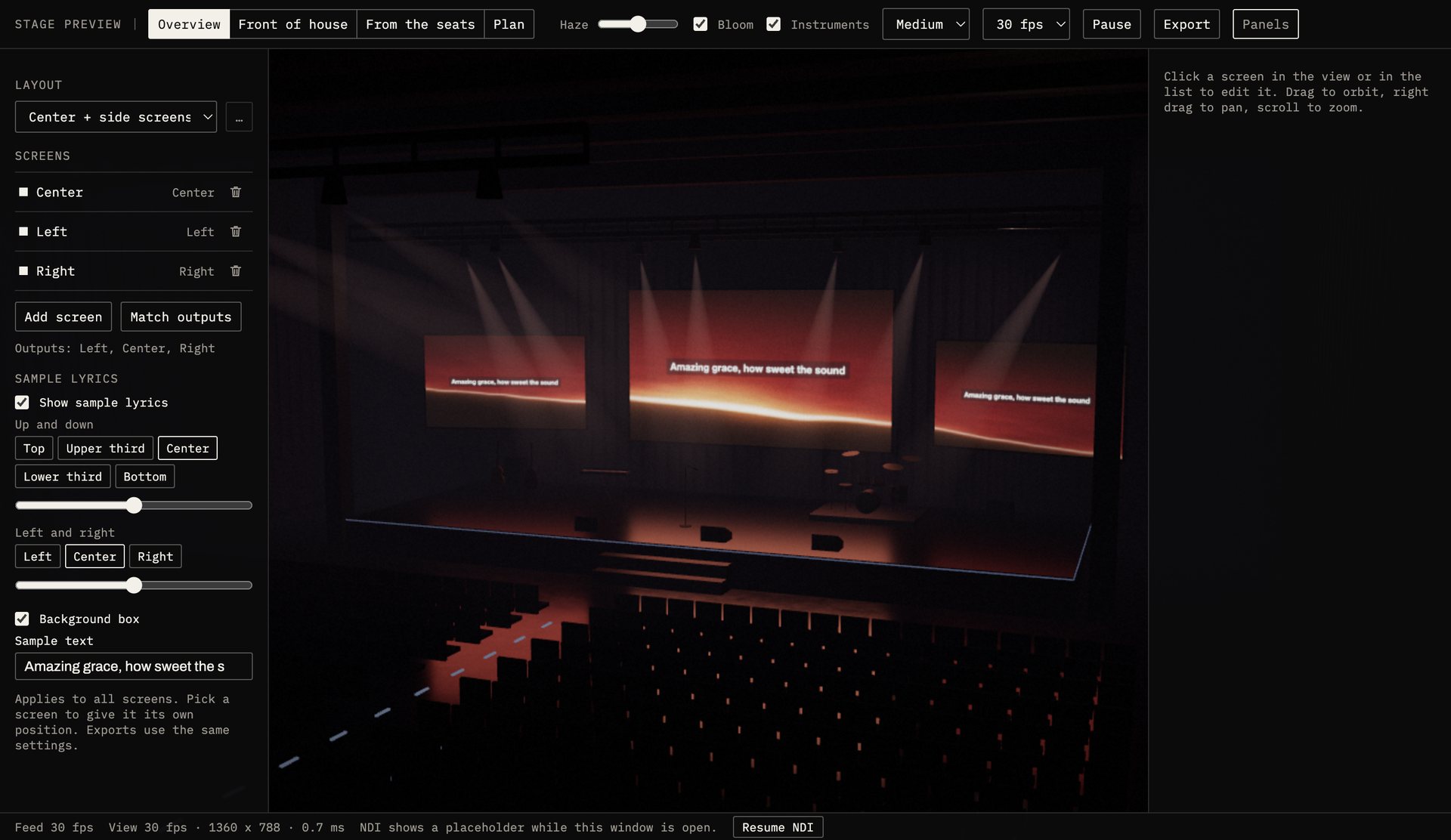
Stage Preview is optional and runs in its own window, so it can sit on a second monitor. While it is open, each NDI source sends a placeholder instead of live video; close the window and the picture is back at once.
Safe to run live.
Nothing in the app is allowed to interrupt what's on your screens.
It won't cut out mid-service
License checks and updates never interrupt what's on air. Updates wait until you're off air, and a license check never stops or dims your output. A licensed Mac never shows a watermark, even offline. A license works for 14 days between checks, with 14 more days of grace.
It works offline
Once a Mac is activated, it plays without the internet. Your visuals, your set lists and any loops you've downloaded all run from the Mac. The internet is for activating a Mac, renewing the license in the background, updates, the loop Library and sync if you turn it on. Feedback goes to us only when you send it.
Your work is safe
Visuals and set lists live on your Mac, and a copy is kept with us only if you turn sync on. Everything is backed up before an update, and one backup file exports the lot. If the output ever stalls, the app restarts it within seconds and brings the picture back.
From the band to the screens.
- 1
Listen
Pick the band feed, from a mixer or audio interface, or the sound your Mac is playing. Meters show what it hears.
- 2
Shape
Choose a design, start from a preset, set its colors, shape and motion, and save it as a visual. Line your visuals up in a set list for the service.
- 3
Send
Output over NDI. ProPresenter picks up each screen as a source, and Companion or a Stream Deck runs the show.
What you need.
LaunchFrame Live runs on one Mac. ProPresenter, or any NDI receiver, can run on that Mac or another one on the same network.
- Mac
- A Mac with an M-series chip (M1 or later). Intel Macs aren't supported. A Pro, Max or Ultra chip is recommended for more than one wide screen
- macOS
- macOS 26 or later
- Output
- NDI (ndi.video), up to four screens, each its own source: 720p up to 4K per screen, at 30 or 60 frames per second. Bigger stages take more from the Mac, so heavier designs reduce their effects to keep the frame rate steady. NDI has no genlock, so on a busy network one screen can land a frame behind another
- Receiver
- Works with ProPresenter and any app that receives NDI, on the same network
- Audio
- The band feed through an audio interface or mixer, or system audio. macOS asks for permission once
- Internet
- To activate and renew the license, check for updates, browse and download loops, and for Sync if you turn it on. Never to play
- Control
- Keyboard, Bitfocus Companion, Stream Deck (software 7.1 or later), or an AI assistant over MCP. Companion, Stream Deck and the AI assistant work with the app on the same Mac
Pricing.
LaunchFrame Live is an add-on for LaunchFrame Unlimited members. You pay per campus, once a year.
Per campus, billed yearly
$149/campus/year
Founding priceFirst 25 churches: $149 per campus per year, locked in. Standard is $199.
- Each campus covers two Macs: a main and a backup
- Free 14-day trial first (watermarked), no card
- Updates included for as long as you subscribe
- Cancel anytime. It runs to the end of the year you paid for
Requires an active LaunchFrame Unlimited membership ($99 a year, the founding price for our first 25 churches, then $149). More than 20 campuses? Email us and we'll set up one license for all of them.
Free early-access beta
Testing is free while LaunchFrame Live is in beta. These prices start when it opens to everyone.
Join the betaQuestions.
Step-by-step setup is in the guides.
Is it free right now?
Yes. You can download LaunchFrame Live and use it free for 14 days with every feature, and the output carries a moving watermark. Churches that join the early-access beta, a limited number and first come, get a license key with no watermark, free until the beta ends. The beta page has the number of churches and the end date. After the beta, LaunchFrame Live is a yearly subscription for Unlimited members.
What do I need to run it?
A Mac with an M-series chip (M1 or later) on macOS 26 or later, a way to get your band's sound in (an audio interface fed from your mixer, or just the Mac's own sound to try it out), and software on your screens computer that can receive NDI. That can be the same Mac or another one on the same network. For more than one wide screen, a Pro, Max or Ultra chip is the safe choice.
What is NDI, and what does my network need?
NDI sends video over your regular network, so there are no capture cards and no video cables between computers. LaunchFrame Live sends each screen as an NDI source, and the software that runs your screens picks it up like a camera or a media input. Put both computers on the same wired network. Plan on roughly 100 to 150 megabits per second for each 1080p screen, and more at 60 frames per second or 4K, so gigabit cables and a gigabit switch are the starting point. Wi-Fi is fine for a test but can drop frames on a Sunday, and the app warns you in Diagnostics when NDI to another computer is going over Wi-Fi. If the receiving software runs on the same Mac, nothing leaves the Mac and the network doesn't matter.
What do I need to connect it to ProPresenter?
Nothing extra. LaunchFrame Live sends its picture over NDI on your local network. In ProPresenter, add a video input and choose the LaunchFrame Live source. Resolume, vMix, OBS (with a free plugin) and NDI Video Monitor receive it the same way, and so does any other app that takes NDI. A wired connection is best when you send more than one screen.
How many screens can it feed, and how sharp?
Up to four screens, each its own NDI source, from 720p up to 4K each, at 30 or 60 frames per second. Heavier designs ease their effects down by themselves to keep the frame rate steady, and there is a Balanced render size for bigger stages.
Which Macs does it run on?
Macs with an M-series chip (M1 or later) on macOS 26 or later. To check, open About This Mac from the menu at the top left of your screen: the chip should start with M. For stages with more than one wide screen, a Pro, Max or Ultra chip is the safe choice.
Is there a Windows or Intel version?
Not today. LaunchFrame Live itself is a Mac app, and it won't run on an Intel Mac or a Windows PC. The computer that receives the picture can be anything that handles NDI, including a Windows PC.
How does the free trial work?
Download the app and use it. Every feature works for 14 days from the first time you open it, with no card. The trial is watermarked: a "LaunchFrame Live · Trial" mark fades in and out at different places around the picture until you enter a license key. After the trial the mark reads "Unlicensed" and the app asks for a key; it never cuts your output mid-service, and your visuals and set lists stay put when you add one. Once licensed there is no mark at all. In the loop Library, the trial can download three loops. A license can download all of them.
What can't I do in the trial?
Nothing is switched off for 14 days. The two differences are the moving watermark and a limit of 3 loop downloads from the in-app Library. When the trial ends, the output keeps running with the "Unlicensed" mark, a "License needed" box appears when you open the app (you can dismiss it), and the Library goes back to browse only. Add a key and the mark is gone within a second, with no restart.
Does it work without the internet?
Yes. Once a Mac is activated, a Sunday with no internet is fine. Your visuals, your set lists and any loops you've already downloaded all play from the Mac, and the picture never depends on the connection. A license is good for 14 days at a time, with another 14 days of grace after that. A few things do need the internet, and the next question lists them.
What does the app connect to?
Only to our servers. It checks your license when you activate a Mac, and again every few hours. It looks for updates in the background. A Mac with no license also asks once an hour whether Live is on sale yet, and sends nothing with the question. It loads the loop Library when you open it, and downloads the loops you pick. Loops you download in Live play inside Live while your license is active. Sync is off until you turn it on. Then it sends your saved visuals, their thumbnails, your set lists and the name of the Mac, so your other Macs can get them. If you send feedback from the app, that comes to us too, and only when you press send. It never sends us your audio or the picture on your screens. That picture goes over NDI to receivers on your own network, and Companion and Stream Deck talk to the app on the same Mac.
How do licenses work?
One license key per church, covering the campuses you pay for. Each campus includes two Macs, a main and a backup, so a three-campus license activates on up to 6 Macs. Replacing a Mac? Release the old one in the app or from your library, then activate the new one. Your keys are saved in your library, where you can show and copy them any time.
Can we use it at more than one campus?
Yes. The price is per campus, so one license covers the campuses you pay for, up to 20 at checkout. For more than 20, email us and we'll set up one license for all of them. Each campus can run two Macs. Visuals and set lists can follow you between Macs two ways: switch on Sync in Settings (it's off until you do), or export a visual or a set list as one file and open it on the other Mac.
Do I have to stay on Unlimited?
You need an active LaunchFrame Unlimited membership to add LaunchFrame Live. After that it's its own yearly subscription, which you manage and cancel separately in your library.
Can I get a refund?
Try it free for 14 days first (the trial output is watermarked). If you subscribe and it isn't right for your church, email us within 14 days of your first payment and we'll refund it in full.
What if the internet or the license server is down on Sunday?
Your screens never wait on it. When the Mac can reach us, it renews its license by itself every few hours. When it can't, the license it holds keeps working for 14 days, then for 14 more days with a quiet reconnect note. If that ever ran out, the only change would be the watermark: the output is never stopped or dimmed because of the license. So a bad Sunday for our server, or a church with no internet at all, doesn't touch your service. Loops you've already downloaded keep playing too. Browsing the Library, downloading updates and Sync need the internet.
Can it run all day?
Yes. Leave it open from soundcheck to the last service. While it runs it keeps the Mac awake, and if the output ever stalls it restarts the output by itself within a few seconds while NDI keeps repeating the last picture. After the Mac sleeps and wakes, it brings its NDI outputs back a few seconds later. Plug the Mac into power: a laptop on battery goes to sleep with its lid closed whatever an app asks, and Diagnostics warns you when the Mac is on battery.
How do updates work?
It won't update in the middle of a service. Updates download in the background and install when you quit the app. Nothing downloads, installs or restarts while the app is in Show mode, while an NDI receiver is connected, or within five minutes of a visual going on air, and quitting during a service doesn't install a waiting update. Everything is backed up before a new version runs for the first time, and Settings can reinstall the previous version.
Can I run it without a band feed?
Yes. Free run is one switch in the header that ignores the audio and runs every design on a built-in virtual song. It suits rehearsals, and a Mac with no input connected. It is remembered with your settings, not saved inside a design.
Does it send audio?
No. LaunchFrame Live sends the picture only. Your sound keeps going wherever it goes now, and the app just listens to the feed you give it.
What is Stage Preview?
An optional window that shows your screens in a dark 3D room, each one playing what the matching output is sending right now. It starts from your outputs and follows them when they change. View the room from the front, from the seats or from above, and export a still or a 10 second clip. While it is open, each NDI source sends a placeholder instead of live video; close it, or press Resume NDI, and the picture is back at once. If you are on air, it asks before it opens.
How do I get help?
Email hello@launchframe.io. In the app, click Send feedback at the bottom of the window (or choose Help, then Send feedback or report a problem…) to tell us what happened. Settings, then Support, then Create support report makes one zip with your diagnostics and logs, and nothing is sent until you attach it to an email yourself. The guides walk through setup, a Sunday checklist and troubleshooting step by step.
What does Send feedback or report a problem send?
Your message, the name and email you type (both are optional), the app and macOS versions, and on a licensed Mac the first few characters of the license key and the church name. A diagnostic report goes only if you check the box, and the dialog lists what's in it. Nothing leaves the Mac until you press Send. If the internet is down, the message waits on the Mac and goes out by itself when it's back.
- Price
- $149 per campus per year (founding price, then $199)
- Trial
- 14 days, every feature, watermarked until licensed
- Macs
- 2 per campus
- Billing
- Stripe, once a year. Cancel anytime in your library
- Guides
- Install, NDI, audio, Show, Stage Preview, Sunday checklist
- Support
- hello@launchframe.io
LaunchFrame Live
Join the free beta.
We're looking for churches to try LaunchFrame Live before it opens to everyone, and testing is free. When it opens, LaunchFrame Live is an add-on for Unlimited members.
NDI® is a registered trademark of Vizrt NDI AB (ndi.video). ProPresenter is a trademark of Renewed Vision, LLC. Bitfocus and Companion are trademarks of Bitfocus AS. Stream Deck and Elgato are trademarks of Corsair Memory, Inc. Claude is a trademark of Anthropic, PBC. Resolume, OBS and vMix are trademarks of their respective owners. LaunchFrame Live is made by LaunchFrame LLC and is not affiliated with or endorsed by ProPresenter, Resolume, OBS, vMix, Bitfocus or Elgato.