Shader Loops Vol. 2 · 4K worship loops

How to loop a background in ProPresenter

To loop a motion background in ProPresenter 7, drag the MP4 into the Media Bin, right-click it, and set Layer to Background and Playback to Loop. Then drag it onto the first slide of the song. A background keeps playing behind each lyric slide until you replace or clear it. To make every imported video loop, go to Settings, then Import.

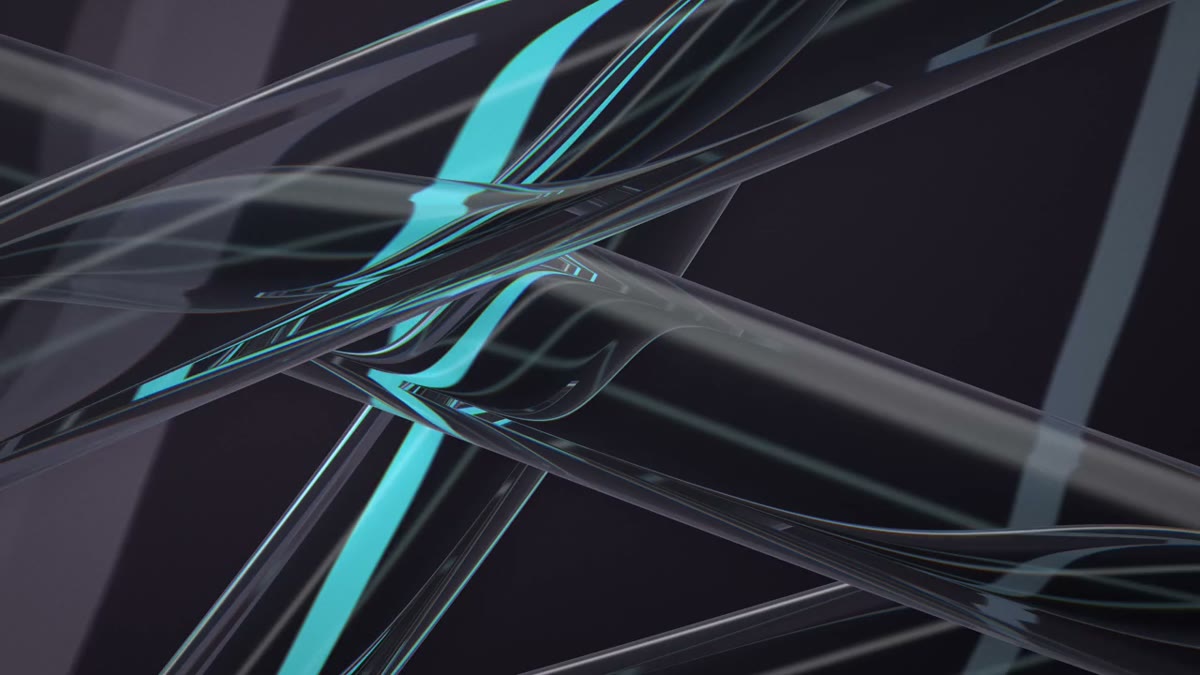
Glass Tubes Loop, a 4K loop from the Shader Loops Vol. 2 pack.

Glass Tubes Loop

ProPresenter-ready 4K loops

Every LaunchFrame loop is a 4K H.264 .mp4 with no text, so it loops in ProPresenter with no jump. Buy a collection once, from $29, or every collection with Unlimited for $149 a year. The first 25 churches pay $99 a year, locked in for as long as they stay.

See ProPresenter motion backgrounds Unlimited, $99 a year

Steps: one video

  1. Add the video. Open the Media Bin and drag the MP4 in from Finder or File Explorer, or click the + button at the lower left.
  2. Make it a background. Right-click the thumbnail and set Layer to Background. A background keeps playing when you change slides. A foreground video stops when you click another slide.
  3. Turn on looping. Right-click again and set Playback to Loop. Soft Loop is also offered.
  4. Attach it to the song. Drag the video onto the first slide of the song. It carries through the following slides until a slide with a different background replaces it.
  5. Check scaling. Set Scaling to Scale to Fill if you see black bars.

Steps: make every imported video loop

Open the ProPresenter menu, choose Settings, then the Import tab. Under Video, choose Background and set playback to Loop. Every video you import after that will loop as a background by default.

Tips for smooth loops

  • Use a loop with no jump. A loop only repeats cleanly if its last frame matches its first. Every LaunchFrame worship loop is made that way.
  • Match your output. A 4K (3840 x 2160) file scales down cleanly to 1080p outputs. For three screens or an LED wall, see triple-wide worship backgrounds.
  • Keep lyrics readable. Pick loops that stay darker where your text sits, or lower the video's opacity or brightness.

Want to try it? Glass Tubes is a free 4K loop that's ready to drop in. For seasons, see Advent & Christmas and Harvest.

Sources: Renewed Vision, Media Import Presets in ProPresenter; ProPresenter 7 User Guide (Media Bin section).


Loops for this

Questions

Why does my background stop when I change slides?

It's probably set as a foreground video. Right-click it in the Media Bin and set Layer to Background.

What's the difference between Loop and Soft Loop?

Both repeat the video. Check Renewed Vision's support docs for how Soft Loop handles the transition in your version.

Do I need to put the background on every slide?

No. Put it on the first slide of the song. It keeps playing until a slide with a different background, or a clear, replaces it.

Can I make all videos loop automatically?

Yes. Go to ProPresenter, then Settings, then Import, and set Video to Background with playback set to Loop.

What format works best?

H.264 MP4 plays everywhere. All LaunchFrame loops are 4K H.264 MP4s.

LaunchFrame Unlimited

$99 a year. Every collection, plus every new one.

Everything in the store today, and each new collection the day it's released. Billed yearly. Cancel anytime and keep everything you download.

Or buy a collection once: $29 to $59, yours to keep. See the collections.

$99/year

Founding price, locked in while you stay. Billed yearly. Standard is $149.

4K MP4 · Works in ProPresenter · One license covers your church team · Livestream OK · Ask within 14 days of your first payment, before any download, for a full refund.

Related